

We’ve all been there: you download a security utility without much thought, and suddenly your laptop moves like it’s given up on life. Mine did, and what followed was a compatibility nightmare and a repair bill I did not see coming. That one careless install taught me more about pc utilities than anything ever did.
Utility software isn’t just “extra programs.” It’s the layer keeping everything else alive. Get it right, and your system runs invisibly well. Get it wrong, and you’ll feel it immediately.
Let me show you what these tools actually are, how each type works under the hood, and how to choose one that helps rather than hurts. Let’s start at the beginning.
What Is Utility Software?
Utility software is a type of program that helps your computer run smoothly. It handles behind-the-scenes tasks that you might not notice, but that keep your system stable, safe, and organized.
These programs can do things like scan for viruses, clean up unnecessary files, manage storage, or back up your data. Some even help your hardware run better, like checking your hard drive or memory.
Think of utility software as the tools that take care of your computer so it works well. You don’t use it for work or games directly, but without it, everything else could slow down, crash, or run into problems.
It’s like housekeeping for your computer: keeping it clean, organized, and protected.
A practical example: you install a few programs, uninstall some, and move files around for a year. The system doesn’t automatically clean up after itself. Temporary files accumulate, and fragmented data slows reads.
A utility handles that cleanup for you. The underlying experience doesn’t change; it just keeps working the way it should.
Core Functions of a Utility Software
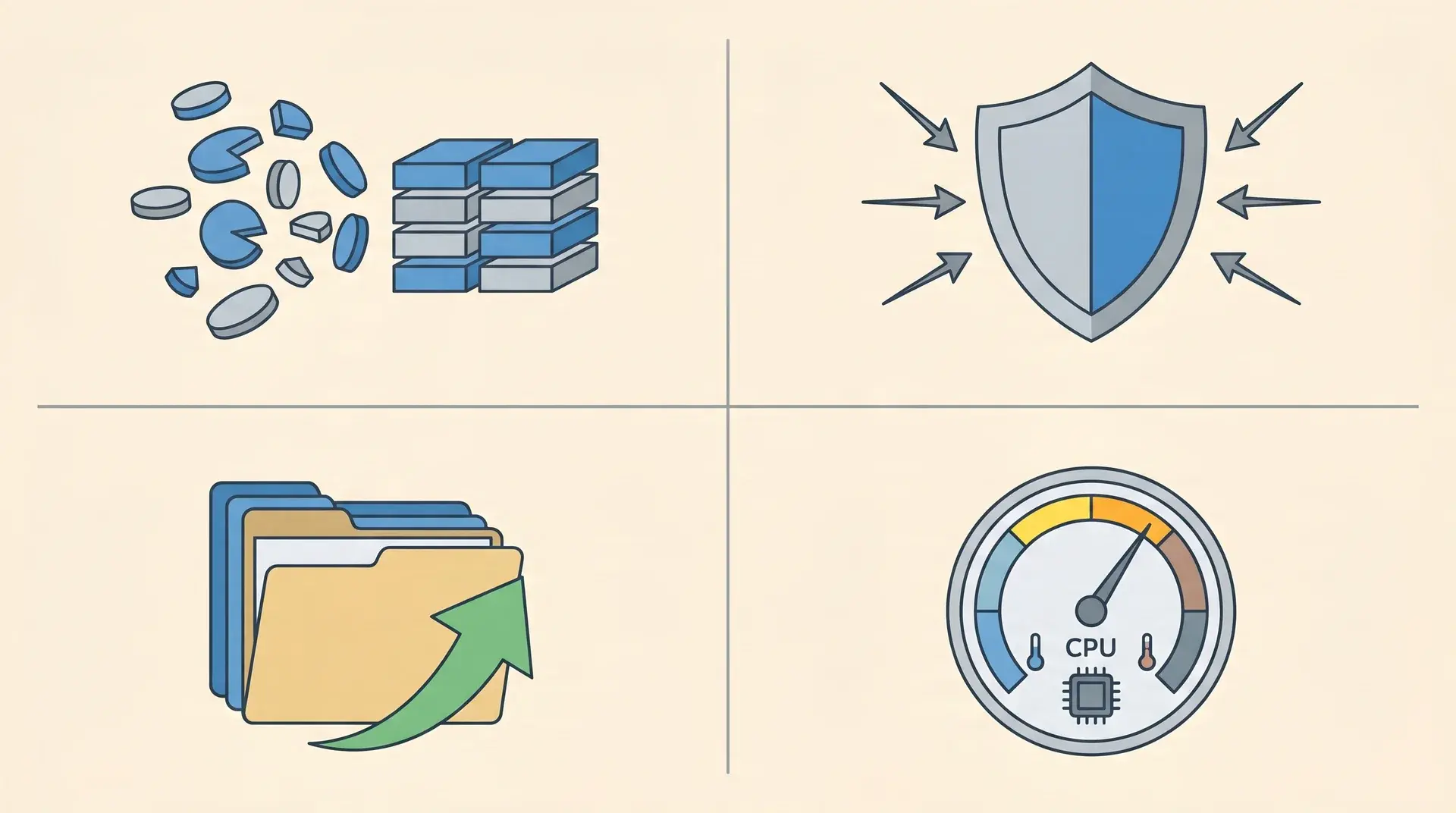
Utility software works quietly to keep your computer stable and efficient. It takes care of tasks you rarely notice but that matter a lot.
Maintenance and Cleanup
Maintenance and cleanup tools dig through your system to remove files you don’t need. That includes temporary files left behind by apps, old downloads, and other digital clutter that quietly piles up.
By clearing this out, these utilities free up drive space and reduce the number of files the OS has to index and track. Both of those things contribute to the gradual slowdown most people notice after a year or two of normal use.
They don’t delete blindly either. They figure out what’s safe to remove so your important files stay untouched.
One specific job worth knowing: disk defragmentation. When you save, move, or delete files repeatedly, your hard drive can store pieces of the same file in scattered locations. That makes the drive work harder every time it reads that file. A defragmenter reorganizes those scattered fragments into contiguous blocks, so reads are faster and the drive experiences less wear.
On modern SSDs, this isn’t necessary; Windows handles it automatically as a TRIM operation. But on traditional HDDs, running a defrag periodically is still a meaningful maintenance step.
Recommendations: CCleaner, macOS Storage Management
Security and Privacy
This is where most people mess up, and where I did too. Security and privacy tools act like a shield around your system. They watch everything coming in and out, scanning for viruses, malware, or any programs trying to access your system without permission.
Unlike a one-time scan, these tools run constantly in the background. They catch threats as they arrive rather than after the damage is done.
Recommendations: Windows Defender, Bitdefender, Norton
File and Disk Management
File and disk management tools help you keep your data in order and recover it if something goes wrong. They can organize files into folders, compress large files to save space, and restore items you accidentally deleted or that became corrupted.
The goal is simple: a small accidental deletion shouldn’t mean permanent loss. With a recovery tool already in place, it usually doesn’t.
Recommendations: 7-Zip, WinRAR, Windows Backup
Hardware Monitoring
Software can only do so much; the physical side of your machine needs watching too.
Hardware monitoring tools track your CPU, GPU, memory, and fans in real time, logging temperatures, voltages, and load percentages so you know when something isn’t working right.
By alerting you to overheating, unusual activity, or failing parts early, these utilities help prevent serious damage. They let you fix issues before they turn into crashes or costly repairs.
Each role targets a different layer of system health. A machine with all four covered runs differently from one where even one is neglected, and the gap usually shows up at the worst possible time.
Recommendations: HWMonitor, Activity Monitor (macOS)
How Is Utility Software Different from Application Software?
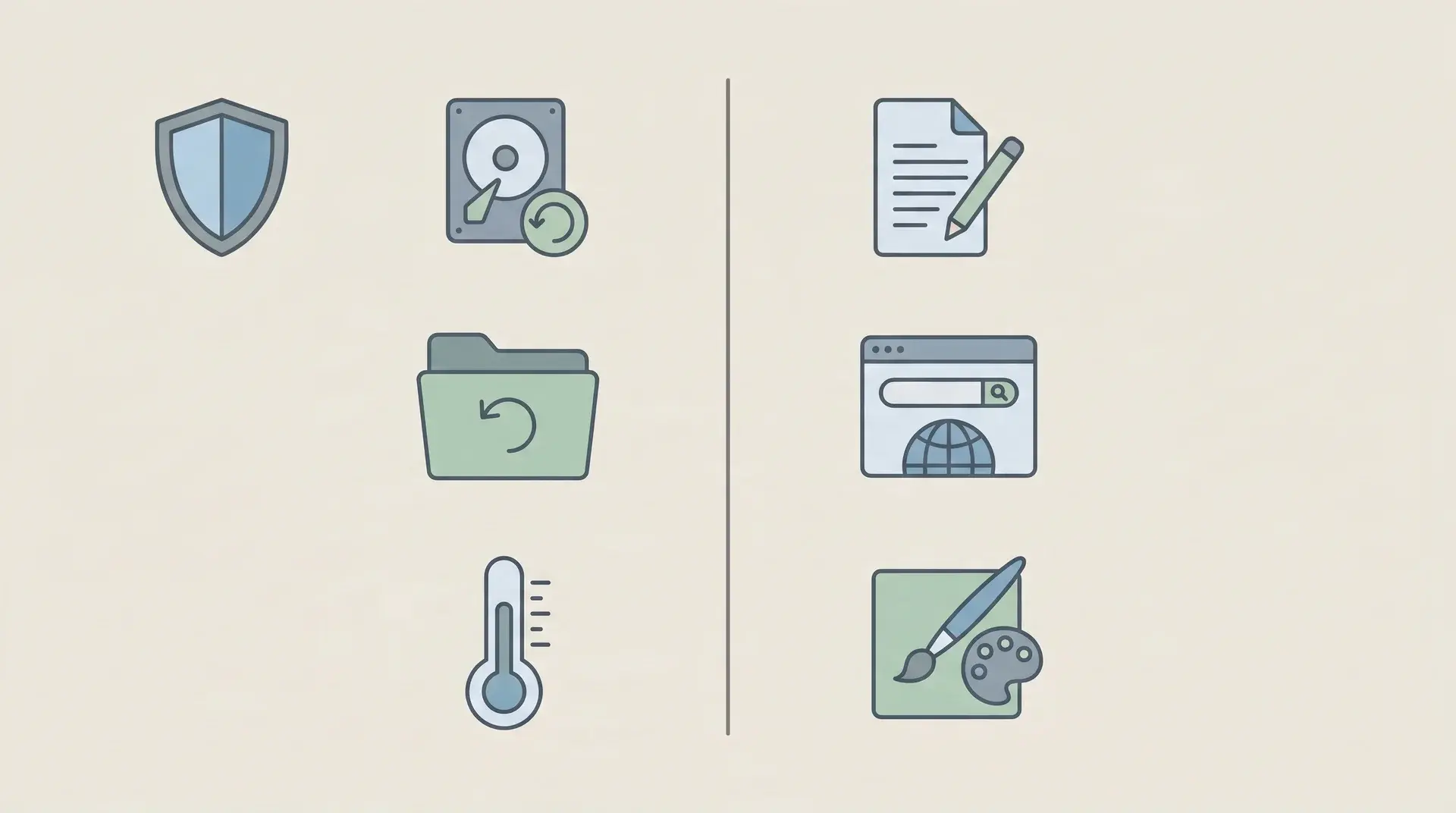
Utility software maintains your system so it stays stable and reliable, while application software helps you get things done, like browsing the web or making a document. That one sentence explains most of it, but sometimes the line can get blurry.
The difference comes down to who the software is working for.
Applications run for you — your browser, design app, or game responds directly to what you do. PC utilities, like an antivirus, disk cleaner, or file compressor, run on the system. They protect, fix, or organize your computer in the background, whether you notice it or not.
It also doesn’t matter where it comes from. A utility can be built into your OS, come from a third-party developer, or even sit in your hardware. What defines it is the purpose, not the source.
There’s a third category worth placing it against: system software. Your operating system and hardware drivers are system software; they’re the foundation everything else runs on. Utility software sits inside that foundation. It uses the OS to do its work, but it isn’t the OS itself.
The clearest way to hold the three apart: system software makes the computer run, application software makes you productive, and utility software keeps the environment that both depend on in good shape.
Built-In Utilities and When to Add More
Most modern operating systems come with utility software built in, covering the main jobs your computer needs. For many people, these built-in PC utilities are enough to keep things running smoothly.
Windows is one of the best examples of utility software. It includes real-time antivirus protection, a storage cleanup tool, a backup program, and a hardware monitor. They’re real PC utilities that handle the essential tasks without you having to install anything extra.
macOS takes a different approach. Its built-in tools are solid, but the coverage is narrower.
There’s no built-in defragmenter, no equivalent to Windows Defender for real-time malware scanning, and no native tool for detailed per-component hardware monitoring.
That’s where third-party utilities like Malwarebytes, iStatMenus, or Disk Drill tend to fill in.
Be careful when adding third-party tools to a system that already has built-in utilities. Putting a new antivirus on a Windows PC that already uses Defender means two programs trying to do the same job. That can actually make your computer slower instead of safer.
Personally, I stick to the tools I really need. One good utility that works is far better than three that overlap and slow things down.
Choosing the Right Utility Software
Start by identifying the single gap you’re actually trying to fill.
Are you dealing with a slow boot, a cluttered drive, no active malware protection, or a machine running hot? Name the problem first. That tells you which category you need and keeps you from downloading three tools when one will do.
Once you know the category, stick to established names.
For Windows security, Microsoft Defender is already there. For cleanup, CCleaner has a long track record. For hardware monitoring, HWMonitor is widely used and free.
Third-party tools from lesser-known developers are where most bad installs start. The utility that prompted the story in the introduction was a low-reputation tool that conflicted with an existing driver.
Before installing anything, check whether your OS already covers it.
Windows ships with Defender, Storage Sense, Backup, and Performance Monitor. If one of those handles what you need, you don’t need a third-party replacement; adding one creates the overlap problem described above.
Conclusion
Your computer doesn’t maintain itself. The files pile up, threats don’t announce themselves, and hardware doesn’t warn you before it fails, at least not loudly.
PC utility software is what catches those problems before they cost you.
Maintenance keeps the clutter from slowing you down. Security runs so you don’t have to think about it. File tools mean a bad delete isn’t a disaster. Hardware monitoring turns silent failure into an early warning.
Get the right tools in place once, and your system handles most of this without you. That’s the goal: a machine that works consistently and without surprises.
Frequently Asked Questions
What is utility software, and what are examples of it?
Utility software manages your computer’s behind-the-scenes tasks by handling maintenance, security, and file management. Examples include antivirus programs, disk cleanup tools, file compressors, and hardware monitors.
What are the four types of utility software?
The four types are maintenance and cleanup, security and privacy, file and disk management, and hardware monitoring. Each solves different system problems and keeps your computer stable.
Is utility software the same as system software?
No. System software is your operating system and drivers; the foundation the computer runs on. Utility software sits within that foundation, specifically designed to maintain, protect, and optimize the system over time. System software makes the computer run; utility software keeps it running well.
Do I need third-party utility software if I already have Windows or macOS?
Not always. Windows covers most roles with built-in tools. macOS covers fewer, so third-party utilities can help fill gaps depending on your needs.