
AI tools promise to save you time. Pictory AI video generator actually can, but only if you know what you’re handing off to the AI and what still needs your judgment.
The gap between a polished video and a mediocre one usually isn’t the tool. It’s knowing where the automation ends and your decisions begin.
This covers how Pictory works under the hood, what it handles well, where it consistently falls short, and which content types it’s genuinely built for, so you can decide whether it fits your workflow before you spend an hour finding out the hard way.
What is Pictory AI Video Generator and What Does It Actually Generate?
Pictory is built for people who want to create videos from existing content without learning traditional video editing software. Instead of generating original footage, it assembles videos using stock media and automation.
Here’s what it does and how each part works:
- Converts multiple content formats: Turn text, scripts, blog posts, URLs, images, and screen recordings into videos.
- Uses licensed stock footage: Pulls clips from its Storyblocks integration, a library of over 10 million licensed media files, rather than generating footage from scratch.
- Adds voiceovers: Choose from AI-generated voices via ElevenLabs on paid plans, or upload your own recorded narration.
- Creates scene-based videos: Breaks your content into separate scenes automatically, with each text segment becoming its own clip.
- Generates captions automatically: Produces subtitles from your script or audio. You can edit timing, wording, and styling before export.
- Requires minimal editing skills: No timeline management or manual cutting needed. Review scenes and replace visuals where necessary.
- Works best for common topics: Subjects like business, marketing, and productivity get stronger visual matches than highly technical or niche topics.
The result is an assembled video you can brand and customize quickly. That makes Pictory a practical option for short marketing, educational, and social media content, particularly when you’re repurposing material you’ve already written.
How Does Pictory Turn Text Into a Video?
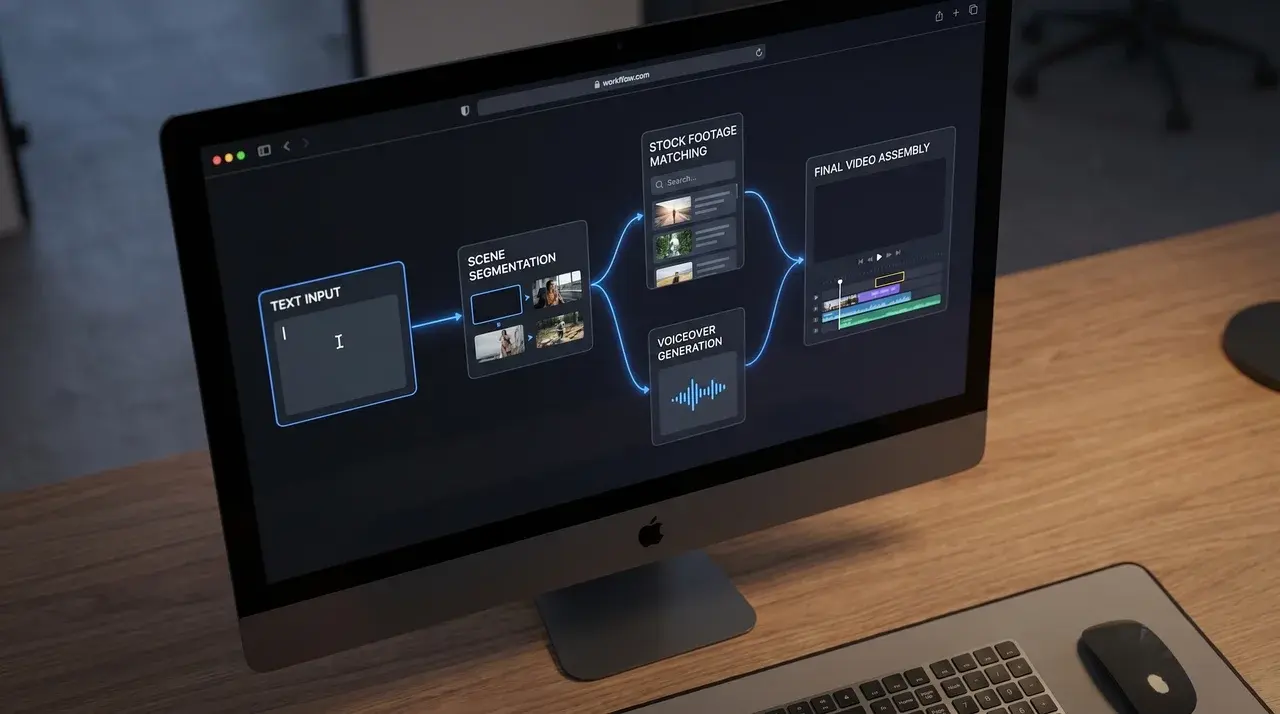
Pictory follows a fixed pipeline: you bring the content, the AI breaks it into scenes and matches footage, then you make the decisions that turn a draft into a finished video.
That handoff point, where the AI stops and you start, is what shapes the output. Understanding it changes how you use the tool.
From Script to Scenes: How the AI Segments and Assigns Footage
When you paste in a script, Pictory reads it sentence by sentence. Each sentence becomes its own scene. The AI pulls keywords from that sentence and queries the Storyblocks library for matching footage.
So if your sentence is “Remote teams struggle with communication,” Pictory looks for footage tied to keywords like “remote,” “team,” and “communication.” What it returns depends entirely on what the library holds for those terms.
This is the step that catches most people off guard. The AI isn’t interpreting meaning — it’s matching keywords. A clear, concrete sentence gives it something to work with. An abstract or jargon-heavy sentence often returns footage that looks nothing like what you had in mind.
Writing short, visual sentences before you import makes a real difference. For example, “Remote teams struggle with communication” gives the AI three workable keywords. “Distributed collaboration faces asynchronous friction” gives it almost nothing it can match to footage. The sentence you write is essentially the search query the AI runs.
Where You Take Over: Voiceover, Branding, and Scene Edits
Once Pictory generates the initial scene timeline, your work begins. The draft is a starting point, not a finished video. You’ll need to make decisions across three areas before anything is worth exporting.
- Footage. Go through each scene and replace any clip that doesn’t fit. This is the most time-consuming part, but skipping it shows.
- Voiceover. You can use one of Pictory’s AI voices, sourced through ElevenLabs on paid plans record your own, or upload a pre-recorded file. Quality varies noticeably between standard and premium voice options.
- Branding. If you have a brand kit set up, like logos, colors, and fonts, apply it here. Without it, the video uses default styling.
One more element worth reviewing before export: captions. Pictory generates them automatically from your script or audio track. They’re editable; you can adjust timing, wording, and styling.
For social media content, where a significant share of viewers watch without sound, this is one of the more useful things the tool does without any extra effort on your part.
Export only once you’ve been through all of these. A video that hasn’t had these decisions made doesn’t represent what Pictory can actually produce.
The Four Input Modes and How They Feed the Same Pipeline
Pictory gives you four ways to start: paste a script, drop in a URL, upload images, or import a screen recording. These are entry points, not separate tools. Once you choose one, the same pipeline kicks in: scene segmentation, footage matching, editing, and export.
What changes between them is what fills the initial timeline and how much control you have over the visuals from the start.
- A URL pulls the article text, extracts the key points, and builds scenes from them; useful when you don’t want to rewrite content you’ve already published.
- Images go straight into a visual timeline, skipping the footage-matching step entirely and giving you more control over the visuals.
- A recording gets transcribed first, then treated like a script, which means you can edit the video by editing the text, cutting sections without touching a timeline.
- A pasted script gives the AI the most to work with and is the most commonly used starting point.
The editing stage that follows looks the same regardless of how you started. The input mode just determines how much of the visual work Pictory handles versus how much you’ve already done.
What Can You Use Pictory For?
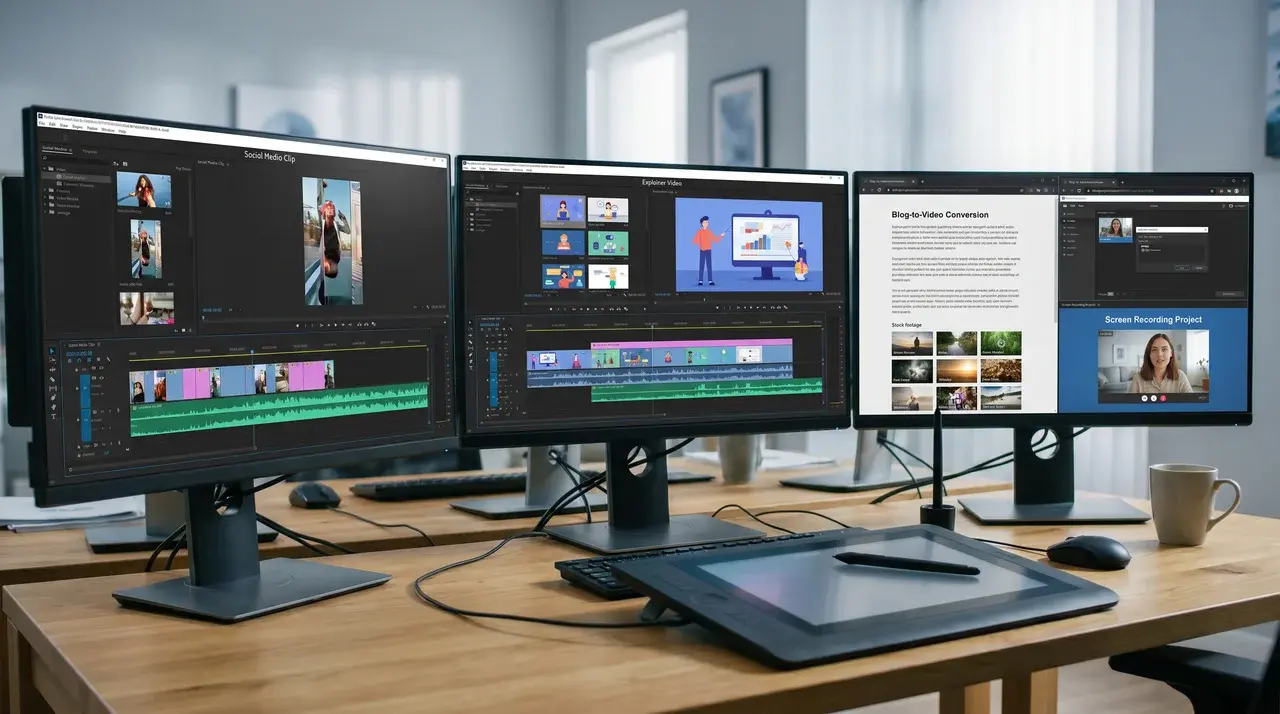
The pipeline is the same regardless of what you bring in. What changes is how well Pictory’s Storyblocks library covers your topic, and that determines how much manual footage swapping you’ll end up doing.
Pictory performs best with short social media videos, faceless YouTube content, and explainer clips. Its scene-based structure naturally fits videos ranging from under a minute to several minutes.
Blog repurposing is a particularly strong use case. If you’re sitting on a library of written content, Pictory can convert it to video without rewriting everything from scratch.
Long-form storytelling, documentaries, and narrative videos are less suitable.
The scene model struggles to maintain visual consistency and story flow over extended durations. If cinematic quality or strong creative control matters for what you’re making, you’ll need a different kind of tool.
Where Does Pictory Work Well and Where Does It Break Down?
Pictory can produce strong results, but performance depends on the quality of your input, the topic you’re covering, and the level of realism you expect from AI-generated elements.
| Area | Works Well When (Pros) | Breaks Down When (Cons) |
|---|---|---|
| Script Structure | Short, clear sentences create clean scene transitions and accurate visual matching. | Long, complex sentences often lead to awkward scene breaks and pacing issues. |
| Topic Coverage | Broad topics like business, technology, productivity, and health have strong stock footage availability. | Niche industries, technical processes, and abstract concepts may return irrelevant visuals. |
| Visual Matching | Concrete and descriptive language helps the AI find suitable footage quickly. | Vague, jargon-heavy, or highly specialized content can confuse keyword-based matching. |
| AI Voiceovers | Explainers, tutorials, and educational content work well with AI-generated narration. | Brand-focused or emotionally driven videos often sound more natural with human voiceovers. |
| Editing Workflow | Fast video creation for users with little editing experience. | Requires manual scene reviews when footage selections do not match the intended message. |
Pictory delivers the best results for straightforward, informational content with broad visual coverage. For highly specialized topics or videos that depend on emotion and storytelling, expect to spend more time refining the draft.
How Does Pictory Compare to the Alternatives?
Pictory isn’t the only tool in this space. Depending on what you need, another option may fit better — and knowing where each one sits saves you from paying for the wrong thing.
| Tool | Best For | Key Difference vs Pictory |
|---|---|---|
| InVideo AI | Template-heavy social content | More template variety; slightly steeper learning curve |
| Synthesia | Avatar-led explainer videos | AI presenters on screen; no stock footage matching |
| CapCut | Budget editing and short-form clips | Free watermark-free exports; less automation |
| HeyGen | Lip-sync dubbing and avatar video | Stronger for multilingual or spokesperson content |
| Fliki | Multilingual voiceover-first videos | Better language support; fewer editing options |
Pictory’s clearest advantage is the blog-to-video and script-to-video pipeline combined with Storyblocks access. If you’re repurposing written content at volume, nothing in this list matches it for that specific workflow.
If you need avatar presenters, HeyGen or Synthesia will serve you better. If budget is the constraint, CapCut is the free starting point before committing to a paid tool.
Is Pictory AI Free?
Pictory is a paid tool, but it offers a free trial of three watermarked video projects with no credit card required. That’s enough to test the interface, though not enough to evaluate it seriously at scale.
There’s no permanently free tier. Once the trial ends, you’ll need a paid plan to export videos.
The plans break down like this:
| Plan | Price (Annual) | Videos/Month | Max Length |
|---|---|---|---|
| Standard | ~$19/mo | 30 | 10 min |
| Premium | ~$39/mo | 60 | 20 min |
| Teams | ~$99/mo | 90 (3 users) | 20 min |
| Enterprise | Custom | Custom | Custom |
The Standard plan covers individual creators with moderate output needs. Premium and Teams are built for agencies or anyone producing at consistent volume. Pricing adjusts periodically, so confirm current figures on Pictory’s official pricing page before committing.
The free trial is worth using fully before you decide. Test it on a real piece of content, not a throwaway script.
Wrapping Up
Pictory is a capable tool when you use it within its design. It handles short-form content, blog repurposing, and explainer videos well when your text is clean and your topic has solid stock coverage.
The places it falls short aren’t flaws so much as boundaries. Knowing them upfront saves you the frustration of expecting something the tool was never built to deliver.
If you’re producing content consistently and want to add video without building a production workflow from scratch, the Pictory AI video generator is worth a serious look.
Start with the free trial, test it on a real piece of content, and let the output tell you what you need to know.
Frequently Asked Questions
Can beginners use Pictory AI without video editing skills?
Yes. Pictory is beginner-friendly and automates scene creation, captions, and visuals. Most users can create professional-looking videos quickly without learning traditional editing software.
Does Pictory AI support multiple languages?
Yes. Pictory supports multiple languages for text, subtitles, and AI voiceovers. Language availability depends on selected features, making it useful for diverse audiences.
Can I download and reuse videos created with Pictory?
Yes. Exported videos can be downloaded and shared across websites, social media platforms, presentations, and marketing campaigns, subject to Pictory’s licensing terms.
Does Pictory AI add captions automatically?
Yes. Pictory generates captions from your script or audio and lets you edit timing, wording, and styling before export. This matters more than it sounds; 85% of social media videos are watched without sound, making readable captions a direct factor in whether your content lands.
How does Pictory compare to traditional video editing software?
Pictory prioritizes speed and simplicity through automation. Traditional editors provide greater creative control, advanced effects, and customization but require significantly more expertise and time.
How does Pictory compare to InVideo, Synthesia, and CapCut?
Pictory’s strongest advantage is its blog-to-video and script-to-video pipeline with Storyblocks access. InVideo offers more templates, Synthesia handles AI avatar presenters, and CapCut is the free option for basic editing. The right choice depends on whether you’re repurposing existing content or building original video from scratch.