
Google AI Mode is changing how searches work, and many users don’t realize it’s already part of the homepage. A single click can turn a regular search into an interactive conversation. Questions get broken down, analyzed, and answered in one clear response.
Unlike standard search or AI Overviews, it handles detailed, multi-part queries and allows natural follow-ups. It also accepts text, voice, and image input, all in the same session.
Whether you found it through the homepage Doodle or the AI Mode tab, here’s exactly what it is and how to use it.
What Was the Google Doodle AI Mode?
On July 1, 2025, Google placed an animated, clickable promotion on its homepage, visible to US users only.
This wasn’t a traditional Doodle celebrating a person or cultural moment. Google called it a “fun promo,” and it had one job: get people into AI Mode without making them hunt for it.
Clicking it launched the full AI Mode experience, identical to what you’d get through the Search tab. No settings. No menus. Just a direct entry point for anyone who happened to visit Google that day.
Purpose and Function
The promotion served a few specific goals, each tied to how Google wanted users to stumble on the AI Mode for the first time.
- User Onboarding: Clicking the Doodle dropped users straight into AI Mode; letting them try conversational search firsthand, with no settings changes or menu navigation required.
- Audience Reach: It gave Google a way to reach homepage visitors who would never think to look for an AI Mode tab or open the Labs settings on their own.
- Temporary Visibility: The promotion ran for one day in the US only. Users who visited Google on other dates, or from outside the US, saw the standard logo, which led some to assume AI Mode didn’t exist yet.
AI Mode itself was never going anywhere. The Doodle was the introduction; the feature has always been accessible through the Search tab and Google Labs, with or without the homepage animation.
Why Google Used Its Homepage for This
Google’s homepage sees hundreds of millions of visits daily. There is no more visible surface the company controls.
Placing AI Mode there wasn’t just about awareness; it was a direct response to growing competition. Tools like ChatGPT, Perplexity, and Claude have been drawing users away from traditional search.
Using the homepage made a clear statement: AI Mode is not an experiment anymore. It’s Google’s main push to keep search relevant in an AI-first landscape.
How to Access Google AI Mode with or Without the Doodle?
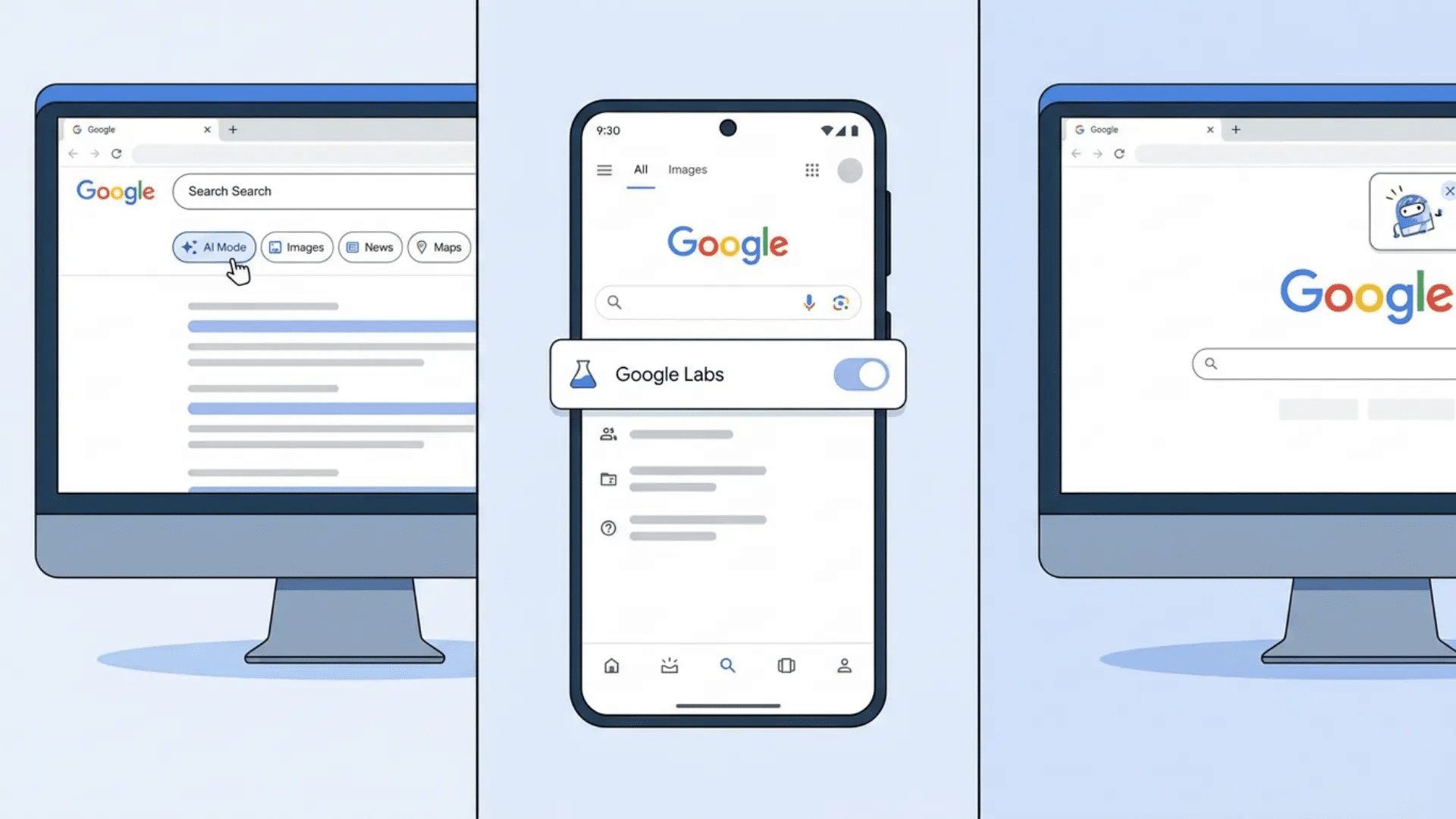
The Doodle was a one-day entry point. These three methods work anytime.
1. Via the Google Search Tab
This is the most direct route for most users no extra steps required.
- Open Google Search: Visit Google.com on desktop or mobile.
- Find the AI Mode Tab: Look below the search bar, near tabs like Images, News, and Videos.
- Launch AI Mode: Click the tab to enter the conversational search interface.
If the tab isn’t showing up, your account may need AI Mode enabled through Google Labs first. That’s covered in the next method.
2. Via Google Labs
Google Labs is Google’s opt-in program for testing features before they roll out broadly. It’s free to use and doesn’t require a paid account, but it’s currently limited to users in the United States.
To enable AI Mode through Labs:
- Open the Google app.
- Tap the Labs icon.
- Find the AI Mode feature.
- Turn on the toggle.
A few things worth knowing before you look:
- Regional Availability: Labs features are not available outside the US at this stage.
- Account Restrictions: Some Google accounts may not support AI Mode yet, even in the US.
- Missing Toggle: If you don’t see AI Mode listed, your region or account type isn’t supported yet.
This is the step most people mean when they ask how to turn on Google AI Mode.
3. Via the Homepage Doodle (When Active)
When the promotion went live on July 1, 2025, clicking the animated logo on Google’s homepage opened the full AI Mode experience, the same interface you’d reach through the Search tab or Labs.
On desktop, the logo animated into a single G with multicolored sparkles before expanding back out. On mobile, users saw the G and colored dots. Both linked to an explanation of AI Mode, with an option to jump straight into it.
If you’re visiting Google today and don’t see anything different on the homepage, that’s expected. The promotion has ended, but AI Mode is still available through the methods above.
How Google AI Mode Differs from Standard Search and AI Overviews
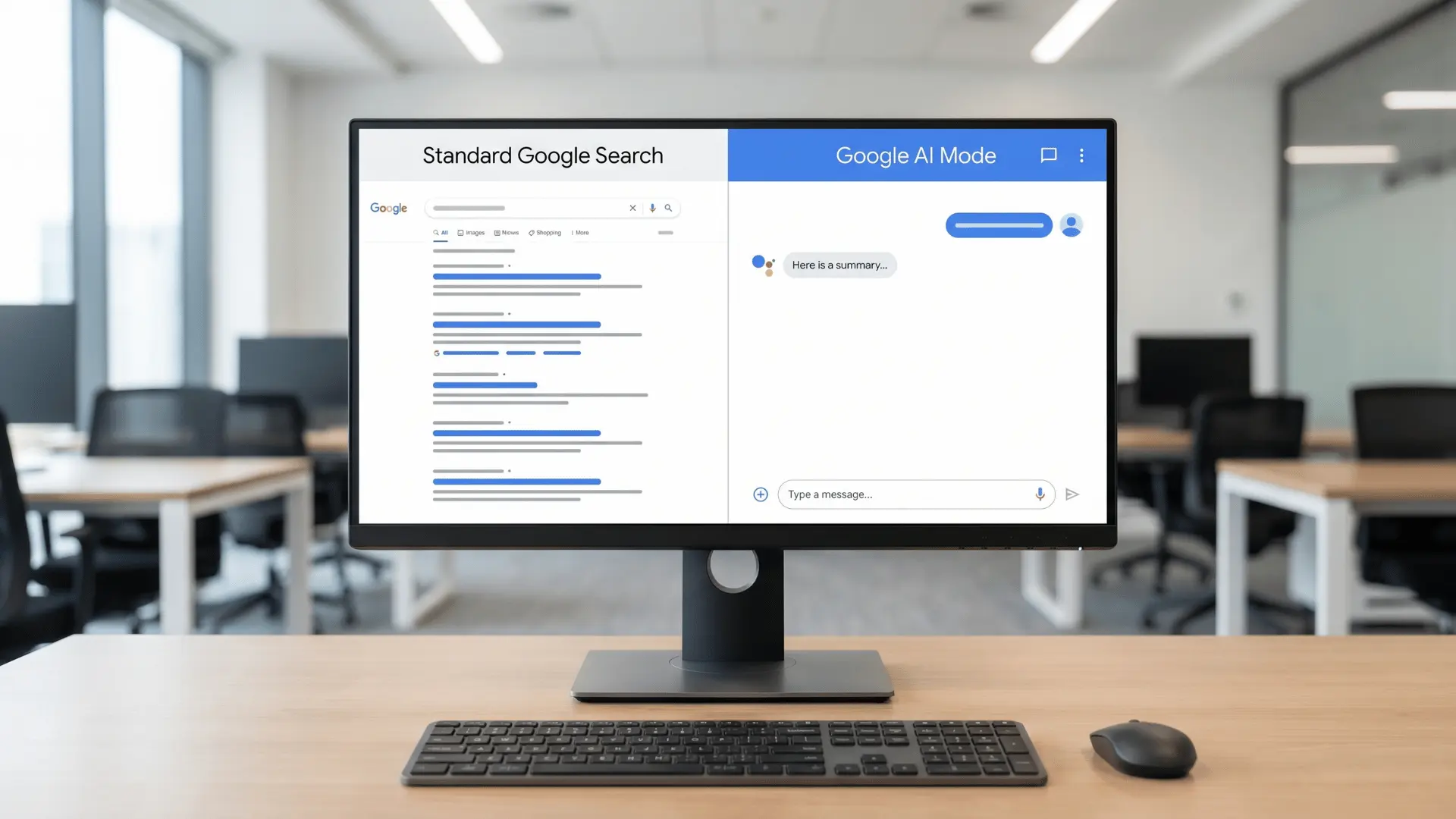
AI Mode isn’t just a new coat of paint on the search results page. It works differently at a fundamental level, and that difference matters most when your question has more than one part.
Standard search runs one query and returns a list of links. AI Mode breaks your question into sub-queries, runs them in parallel, and combines everything into one answer.
This happens for anything requiring synthesis, like comparisons, explanations, and multi-step research.
AI Mode vs. Standard Google Search
Here’s how the two experiences compare across the dimensions that matter most day-to-day:
| Feature | Standard Google Search | Google AI Mode |
|---|---|---|
| How Results Appear | List of links, sometimes with a short summary | Chat-style answer combining information from multiple searches |
| How It Works | Searches once and shows results | Breaks the question into parts, searches each, and combines the answers |
| Speed | Fast for simple questions | Adds a second or two of processing; worth it for detailed questions |
| Follow-Up | Requires a new search | Supports follow-up questions in the same conversation |
| Best For | Quick lookups like “weather today” | Complex questions that need full explanations |
The speed difference is worth understanding: AI Mode runs multiple sub-queries in parallel, which adds processing time. For a quick lookup like a sports score or a unit conversion, standard search is faster. For anything that would normally take you three or four searches, AI Mode earns that extra second.
AI Mode vs. AI Overviews
AI Overviews and AI Mode are easy to confuse because both involve AI-generated answers. The difference is in how deep each one goes.
| Feature | AI Overviews | Google AI Mode |
|---|---|---|
| How Results Appear | Short summaries within regular search results | Chat-style answers combining multiple searches |
| How It Works | Single search pass | Breaks the question into parts, searches each, and combines the answers |
| Follow-Up | Not supported | Supports follow-up and multi-turn conversations |
| Interactivity | Passive, read-only | Active and conversational |
| Technology | Generated from one search | Powered by Gemini with real-time query synthesis; Deep Search available as an advanced option |
AI Mode is powered by Gemini and processes multiple queries at once. AI Overviews run a single pass and sit inside your regular results. If you need to dig deeper or follow a thread, AI Mode is built for that. AI Overviews are not. One caution: on topics where sources conflict, AI Mode can over-synthesize — treat its answers as a starting point on anything high-stakes, not a final word.
How to Use Google AI Mode?
Once you’re in AI Mode, the interface looks like a chat window, but it behaves more like a research assistant. You can type a question, speak it naturally, or upload an image, and the system handles the rest.
It’s built for questions that have layers. A single-word lookup will work, but it won’t show you what the tool is actually capable of. Try it first with something you’d normally spend ten minutes searching.
Input Types: Text, Voice, and Image
AI Mode supports three ways to ask a question. Each one suits a different situation; here’s when to use which.
- Text: Type full questions or detailed prompts. “What are the best ways to reduce indoor air pollution in small apartments?” gets a detailed response with multiple angles, not a list of links to sort through.
- Voice: Speak your question naturally, the way you’d ask a person. “Explain how composting works for beginners” is easier to say than it is to keyword. Voice input skips that translation step entirely.
- Image: Upload a photo and ask about it directly. Snap a picture of something unfamiliar and ask “What is this and how do I use it?” AI Mode pulls context from the image, not just your words.
If you haven’t accessed AI Mode yet, the Search tab or Google Labs are both reliable starting points. The access steps are covered in the section above.
Asking Follow-Up Questions
AI Mode holds your context within a session. You don’t have to re-explain your original question every time you want to go deeper.
Ask “What are good ways to reduce indoor air pollution?”
Then follow up with “Which of these is cheapest to implement?”
It knows what “these” refers to. That continuity is what makes it useful for research rather than just quick lookups.
The session doesn’t carry over once you close it, so if you’re working through something complex, keep the tab open until you’re done.
Wrapping Up
Google AI Mode changes what a search can do. Instead of returning a list of links, it works through your question and hands you a complete answer you can keep building on.
The July 2025 Doodle was a one-day introduction to that experience. The feature itself is available anytime through the AI Mode tab in Google Search or via Google Labs.
Try it with a question that would normally take you three or four searches to answer, and see what comes back.
Frequently Asked Questions
How do I turn on Google AI Mode?
Open Google Search and look for the AI Mode tab below the search bar. If it’s not visible, enable it through Google Labs in the Google app. Availability is currently limited to users in the United States.
Is Google AI Mode the same as AI Overviews?
No. AI Overviews are single-search summaries that appear inside your regular results. AI Mode is a separate interface with conversational, multi-query answers and full follow-up support.
Why did the Google Doodle show AI Mode?
On July 1, 2025, Google used its homepage animation — visible to US users — to promote the AI Mode launch. It was Google’s way of introducing the feature to everyday visitors who wouldn’t have found it through settings or Labs on their own.
What can I ask Google AI Mode?
Anything with more than one part — comparisons, explanations, research questions, or topics you’d normally need several searches to cover. It also accepts voice and image input, not just text.