
Free AI image tools usually come with a catch: a watermark, a waitlist, or a sign-up wall before you’ve seen a single result.
Dezgo AI image generator skips most of that. It runs in your browser, asks for nothing upfront, and gives you more ways to create and edit than most people realize.
But “free” rarely means what it sounds like, and the tool’s real value isn’t obvious until you understand how it’s built.
Here’s what Dezgo actually offers, where it draws the line, and how to get the most out of it from your first session.
What Is Dezgo AI Image Generator?
Dezgo is a browser-based AI image generator powered by Stable Diffusion and Flux open-source models that anyone can run without paying for proprietary access.
You don’t need to install anything. You don’t need an account. Open the site, and you can start generating immediately.
It’s also more than a text-to-image tool. Dezgo lets you edit existing images, remix photos, fill in missing areas, and upscale outputs, all from the same interface.
Most people arrive expecting a simple prompt box. What they find is a toolkit with several distinct generation modes built on open, well-documented AI infrastructure.
What Can You Do with Dezgo?
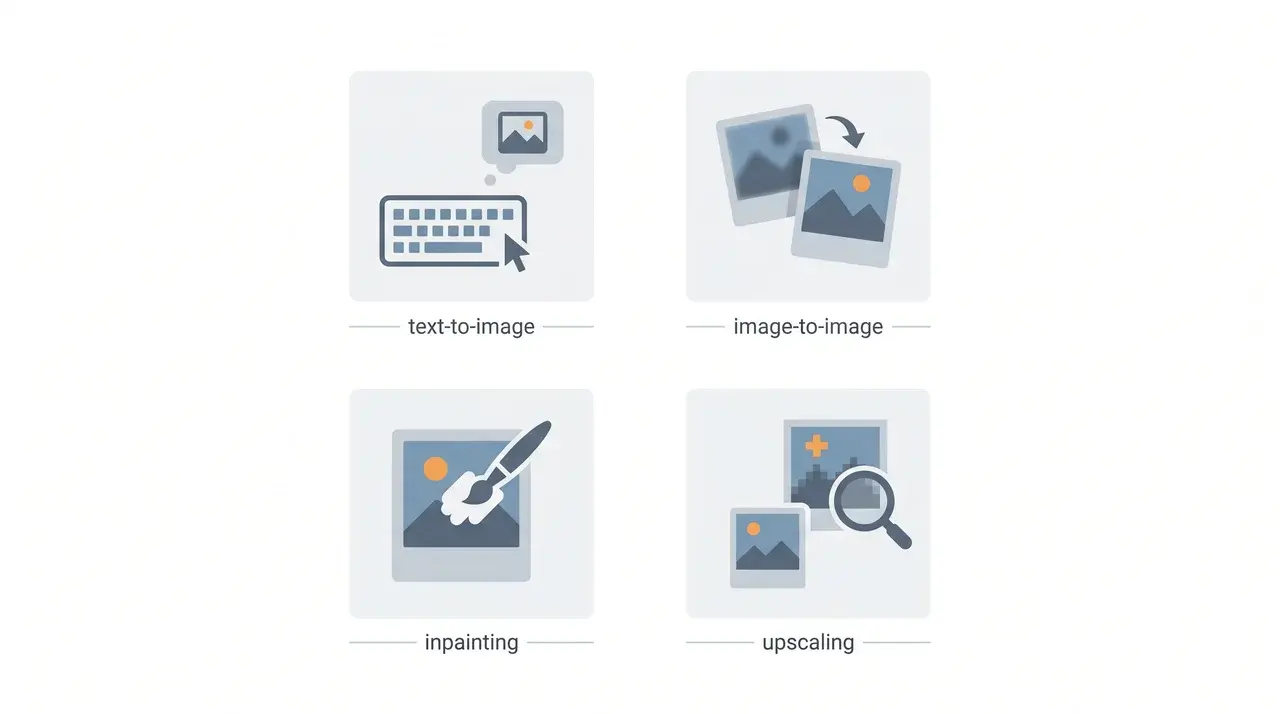
Dezgo covers text-to-image generation, image-to-image remixing, inpainting, and upscaling. Each mode does something genuinely different, and picking the wrong one doesn’t just change the output; it changes what the tool can do for you entirely.
Dezgo has also expanded into video. The platform now supports text-to-video and image-to-video generation, accessible through its interface.
Video generation is a paid feature, but it’s worth knowing it exists, especially if your use case involves short-form content or animation. I’m only focusing on image generation, which remains the core free offering.
1. Text-to-Image Models
Dezgo offers four image generation models. Each one changes the quality, speed, and detail ceiling you’re working with. The model you pick sets the upper limit for your result; no amount of prompt refinement gets you past it.
SD1
SD1 is built for speed and simplicity. It’s the easiest model to use for quick generations and rough concepts.
- Fastest generation speed on the free tier
- Lightweight and low-resource
- Best for quick drafts, prompt testing, and simple concepts
SD1 works well when speed matters more than detail. If you’re trying to nail a composition or test prompt wording before committing to a slower model, it’s the fastest feedback loop available. Complex scenes and realistic textures will look limited here; that’s expected, not a bug.
XL
XL focuses on improved image quality and composition. It delivers cleaner, more detailed results than SD1 across nearly every scene type.
- Higher-resolution output
- Stronger detail, especially on faces and architecture
- Slower generation time than SD1
XL creates sharper results than SD1, particularly on scenes with multiple elements, faces, or architectural detail; areas where SD1 tends to soften and flatten. If your prompt describes a specific environment or character with defined features, XL is where the difference becomes visible.
XL Lightning
XL Lightning is built for users who want better quality than SD1 without waiting on full XL generation times.
- Faster than full XL, slower than SD1
- Cleaner outputs than SD1 without the wait
- Detail doesn’t fully match XL on complex prompts
XL Lightning is the practical middle ground for most use cases. If you’re generating regularly and full XL feels slow, start here and move to Flux 1 only when the prompt genuinely demands it.
Flux 1
Flux 1 is the most advanced model available in Dezgo. It performs best with detailed prompts and realistic scenes.
- Best overall output quality on Dezgo
- Interprets detailed, layered prompts more accurately than other models
- Most likely to nail lighting, texture, and composition when your prompt is specific
Flux 1 is Dezgo’s strongest model for realism and intricate prompts. If your prompt includes detailed lighting, textures, or layered compositions, this is usually the right call.
The biggest mistake you can make is choosing SD1 for a highly detailed idea. Better prompts help, but the model still determines how far the image can go.
2. Image Editing Modes
Dezgo also includes several editing modes, each serving a distinct purpose. Understanding the difference helps you use the right tool rather than fighting the wrong one.
Image-to-Image
Image-to-image transforms an existing visual into something new while keeping the original as its structural foundation.
- Transforms an existing image using your prompt as guidance
- Keeps the original structure as a reference point
- Best for style transfers and reference-based generation
Think of it as visual remixing. You upload a photo or artwork, then guide the AI toward a new style, mood, or composition. The original image shapes what comes out; you’re steering it, not replacing it.
Inpainting
Inpainting gives you targeted control. You edit only specific parts of an image rather than regenerating the whole thing.
- Edits only the area you paint over
- Keeps everything else untouched
- Useful for object replacement, detail fixes, and background swaps
Inpainting is ideal when one specific area isn’t working. You can replace objects, fix details, or remove unwanted elements while preserving everything else in the frame.
Upscaling
Upscaling improves image size and clarity after generation is complete.
- Increases image resolution
- Improves clarity and sharpness
- Does not redesign or alter the composition
Dezgo uses Real-ESRGAN for upscaling, a model built specifically for AI image enhancement that increases resolution without the blur or smearing you’d get from a standard resize.
Run it after generation, not before. It makes your output larger and cleaner without changing what’s in it.
Is Dezgo Actually Free?
The short answer is: partly.
Dezgo’s SD1 tools (text-to-image, image-to-image, and inpainting) are genuinely free with no account required and no hidden queue. You open the site and generate immediately.
Premium models like XL, XL Lightning, Flux 1, and upscaling require credits, accessed through Dezgo’s paid tier called Power Mode.
Power Mode is priced per image at around $0.003 per generation rather than as a subscription, so you pay only for what you use.
The free tier has real limits, mainly a model quality ceiling and speed, but Power Mode unlocks the full model range without a recurring commitment.
How to Use Dezgo to Generate an Image
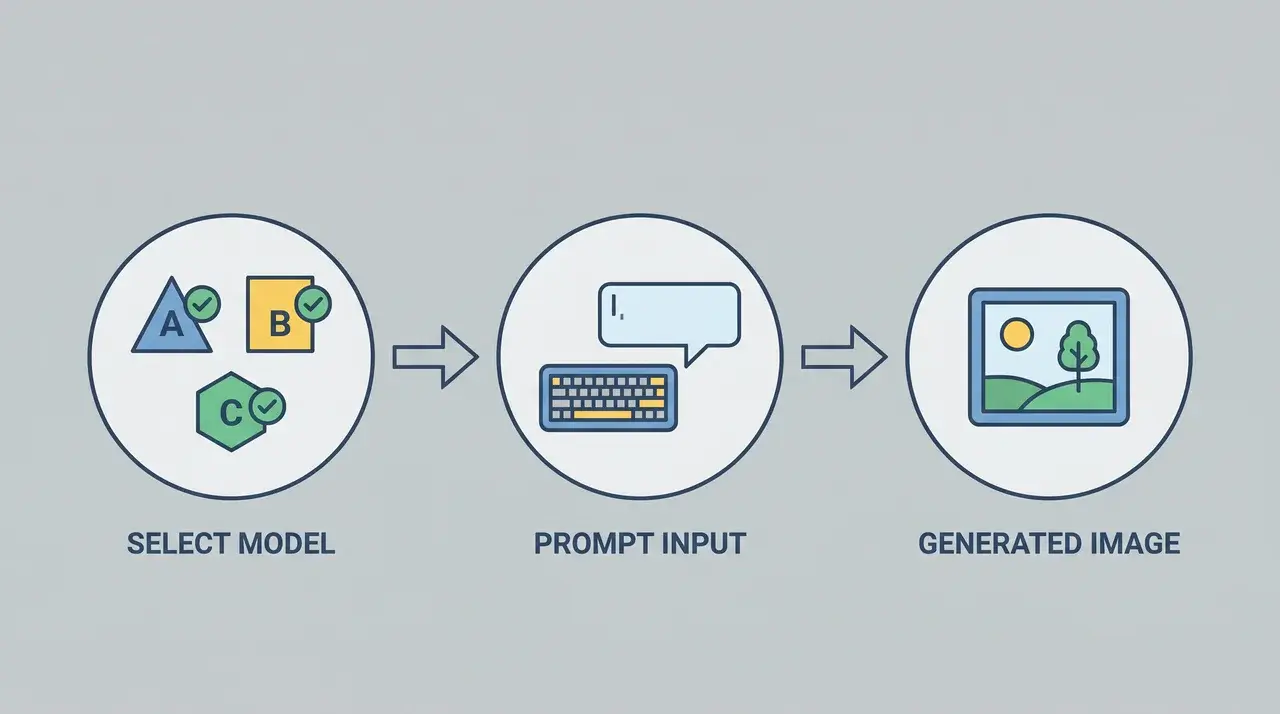
Dezgo runs entirely in the browser with no account required to generate your first image. The process is short, but a few decisions inside it determine most of your result.
Choosing the Right Model
| Model | Best Use Case | Notes / Trade-offs |
|---|---|---|
| SD1 | Quick, low-detail generations | Fast but limited in sharpness and complexity |
| XL | Sharp, complex, or realistic output | Full capability, higher detail |
| XL Lightning | Middle ground between SD1 and XL | Better quality than SD1, faster than XL |
| Flux 1 | Handles detailed prompts best | Best for high-detail, complex scenes |
Writing a Prompt That Works
Dezgo responds to descriptive, specific prompts. A weak prompt gives the model room to guess. A strong one removes that room entirely.
Build your prompt in this order: subject, setting, style, lighting.
The model weights earlier terms more heavily, so what you put first shapes the image most.
“A woman in a red coat walking through a foggy street at night, cinematic, high contrast” will outperform “woman walking outside” every time.
“A red fox in a snowy forest, oil painting, soft morning light” lands differently than the same words with lighting first and subject buried at the end.
Using Negative Prompts
Negative prompts are the second input field most beginners skip. Your main prompt tells the model what to include. The negative prompt tells it what to avoid.
Type terms like “blurry, low quality, watermark, extra limbs” into the negative prompt field and the model actively steers away from them.
For realistic scenes, a starter negative prompt of “blurry, low resolution, watermark, out of focus, overexposed” clears out the most common failure modes before you’ve adjusted anything else.
Guidance Scale and Seed
Two controls determine how the model interprets and repeats your prompt.
Guidance scale sets how strictly the model follows your wording. The practical range is 7 to 12. Lower values give the model creative room. Higher values lock it tighter to your exact prompt. If your output looks chaotic, raise it. If it looks stiff or too literal, bring it down.
Seed value controls randomness. Every generation runs on a seed number that determines the starting noise pattern. If you get a result you like but want to refine it, note the seed and reuse it with a modified prompt. You’ll build on the same foundation instead of starting from scratch each time.
Once your model is selected and your prompt is ready, set your resolution, hit generate, and let it run.
What Are the Limitations of Dezgo?
Dezgo is a capable free AI image tool, but its limitations become more visible as your usage becomes more demanding. Here’s a clear breakdown of where those constraints show up.
| Limitation Area | What It Means | Practical Impact |
|---|---|---|
| Model access | Free tier uses SD1; advanced models require Power Mode credits | Lower detail, weaker realism, and a ceiling on complex scenes |
| Speed | Free generations are slower than paid processing | Fine for occasional use, but inefficient for bulk image creation |
| Content restrictions | Built-in policy filters block certain prompts regardless of wording | Some ideas simply won’t generate, even with prompt adjustments |
| Output ceiling | Quality depends heavily on model tier, not just prompting skill | You may hit limits even with well-written prompts |
Dezgo is genuinely useful for lightweight creation and experimentation. Understanding these boundaries helps you avoid leaning on it for workflows that need higher consistency or premium-quality output.
Conclusion
Dezgo holds up well as a free tool, especially if you’re willing to learn it before you judge it.
The free tier is genuine, the editing modes go deeper than the name suggests, and the open-source model foundation gives it more flexibility than most closed alternatives.
The limits are real too: model quality caps, slower speeds on the free tier, and a content policy that applies regardless of how you prompt. None of that makes it the wrong choice; it just makes it a specific one.
If Dezgo fits your use case, try the Dezgo AI image generator directly at dezgo.com and see what it produces for your actual work.
Frequently Asked Questions
Can you use Dezgo without creating an account?
Yes. Dezgo lets you generate images directly in your browser without signing up first. You can access the free SD1 tools immediately, including text-to-image and image editing modes.
Which Dezgo model produces the best results?
Flux 1 generally delivers the highest-quality outputs on Dezgo. It handles detailed prompts, realistic lighting, and complex scenes better than SD1 or XL Lightning.
Does Dezgo allow commercial use of generated images?
Commercial use depends on the specific AI model and the licensing terms governing the generated content. Review Dezgo’s terms and the underlying Stable Diffusion or Flux model licenses before using images commercially.
Why are Dezgo images sometimes blurry?
Blurry outputs usually come from low-resolution models, vague prompts, or skipping the upscaling step. Using detailed prompts, negative prompts to exclude blur and low quality, and higher-tier models like XL or Flux 1 significantly improves sharpness.
What is the difference between inpainting and image-to-image?
Inpainting edits only selected parts of an image while leaving the rest unchanged. Image-to-image transforms the entire image based on your prompt, creating a broader visual remix.