
Imagine turning your pet’s photo into a beautiful piece of art in just minutes. With free AI tools, you can create portraits ranging from playful cartoons to beautiful paintings.
These tools take your photo, analyze your pet’s unique features, and turn them into a custom artwork. Every platform works slightly differently, but the result is always a fun, personalized portrait.
Here you’ll find the best free tools available right now, what makes each one different, and how to get a portrait that actually looks like your pet.
What is an AI Pet Portrait Generator?
A free AI pet portrait generator lets you upload a photo of your pet, pick an art style, and get a custom portrait back in seconds.
The tool analyzes your photo and recreates it in the chosen style. Options range from oil painting and watercolor to cartoon or royal portrait, with the underlying process consistent across platforms.
“Free” doesn’t mean the same thing everywhere, though. Some tools give you unlimited generations with a watermark on every output. Others give you a set number of high-quality, watermark-free images per day before hitting a limit.
What stays consistent is this: the AI works from your photo. It has no prior knowledge of your pet. The better the photo, the better the result.
Which Free AI Pet Portrait Generators Are Worth Using?

The tools differ in style options, free usage limits, and how they process photos. Understanding these differences beforehand prevents wasted attempts on the wrong platform.
Top Free Style-Focused Tools
These three are the most style-focused options in the free tier. Each one takes a different approach to the level of creative control you get.
1. Adobe Firefly
Adobe Firefly is great for style versatility, letting you create sketches, fantasy, royal, or painterly pet portraits. Descriptive prompts improve the interpretation of texture, color, and lighting.
The AI responds well to detailed instructions, so mentioning the mood, background, or color palette can make your pet portrait look more refined and artistic.
The free tier limits daily generations, encouraging experimentation rather than bulk outputs. Paid plans unlock higher resolution, unlimited styles, and faster rendering for professional-quality results.
2. NightCafe
NightCafe specializes in historical and classical art styles. It blends pet photos with cues from Renaissance, Impressionist, or Baroque paintings while keeping key features recognizable.
Five free generations per day allow careful testing of prompts such as “Victorian oil painting” or “Impressionist garden background.” Experimentation helps achieve the desired look.
It works especially well for pets in costume or imaginative settings, producing gallery-ready portraits with painterly texture and a unique artistic touch.
3. PicLumen
PicLumen handles both 2D and 3D effects and allows background swaps. It also supports playful accessories, such as hats or collars, to enhance creative portraits.
The interface is user-friendly, letting beginners layer multiple elements with simple prompts and immediately preview changes for easier experimentation.
It’s ideal for whimsical or cartoon-style portraits. The tool encourages playful creativity while producing fun, visually interesting results without sacrificing recognizability.
High-Volume and Accuracy-Focused Tools
These two work differently from the style-picker tools above, and that difference matters depending on what you actually want from the output.
4. CGDream
CGDream offers 100 free daily credits with no watermark and full-resolution outputs, making it the most generous free tier for experimentation and generating multiple portraits.
You can combine prompts, adjust style intensity, and preview results before finalizing. This flexibility allows testing variations and creating themed portrait collections.
It’s perfect for high-volume needs or projects that require multiple styles. The platform balances output quality with quantity, ideal for enthusiasts and casual users alike.
5. ChatGPT
ChatGPT focuses on likeness accuracy rather than style variety, preserving coat texture, facial features, and unique markings better than most free tools.
When you upload a photo and add a descriptive prompt, it processes the image directly, capturing your pet’s distinct look with high fidelity.
It’s perfect for realistic or semi-realistic portraits. Free usage requires only a ChatGPT account, producing high-quality results at no extra cost while prioritizing accuracy over artistic flair.
How to Turn Your Pet Photo into AI Art: Step by Step
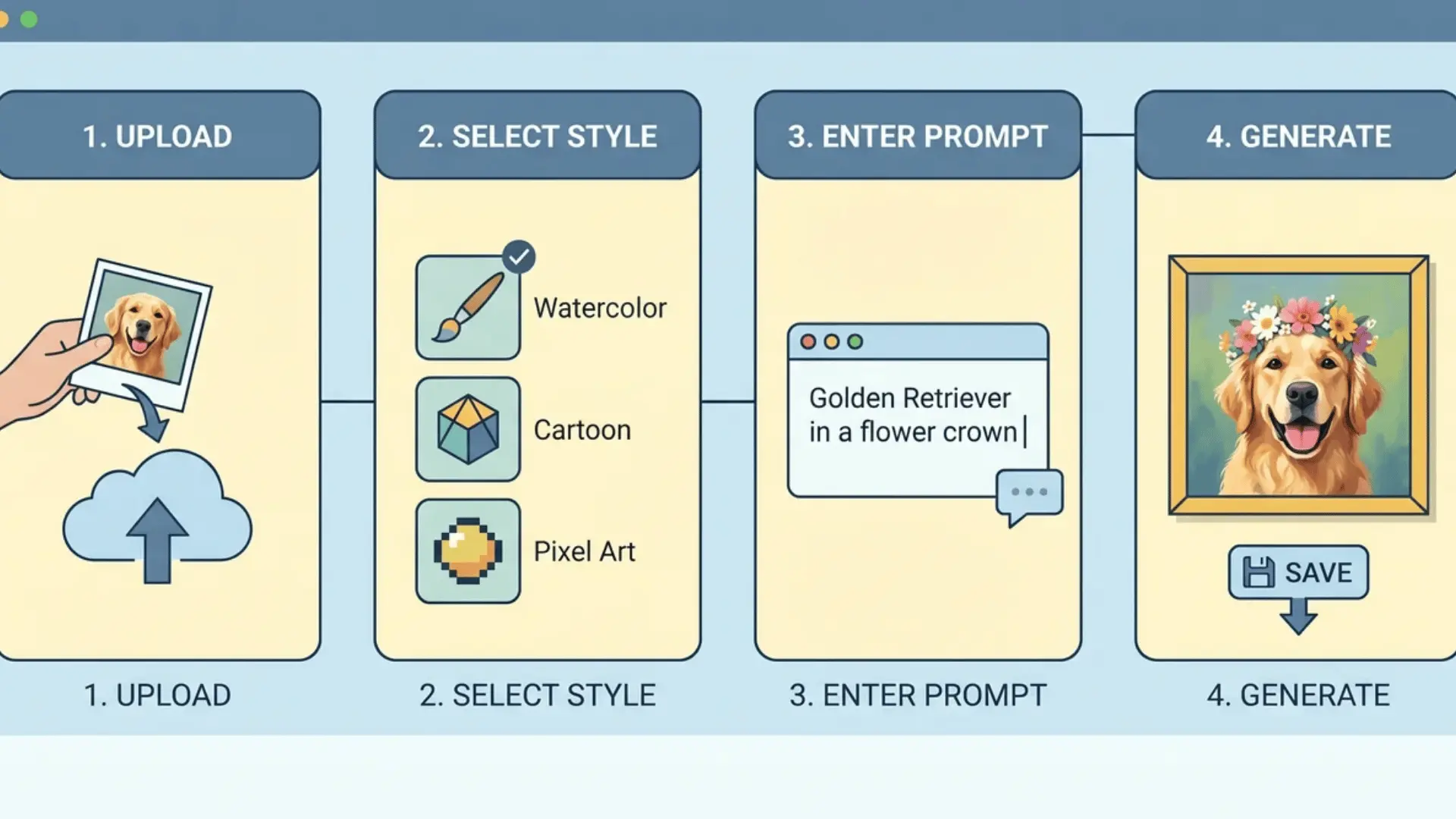
The process is quick across all platforms. Most people have their first portrait done within a few minutes of landing on the tool for the first time.
Here’s what the standard process looks like across most free AI pet portrait generators:
Step 1. Choose and Upload Your Photo
Pick a clear, face-forward photo of your pet. JPG and PNG files are ideal. Good lighting and a simple background make it easier for the AI to capture coat texture, eyes, and markings accurately.
High-resolution images work best because AI models struggle to interpret blurry or dark photos. A sharp, well-lit photo ensures your pet’s unique features appear clearly in the final portrait, reducing the risk of generic results.
Step 2. Select a Style
Decide the look you want for your portrait. Common styles include oil painting, watercolor, cartoon, or royal portrait. Choose one that matches the mood and feeling you want the final image to convey.
Each style interprets your pet differently. Realistic styles show fur texture and facial proportions, while cartoon or illustrative styles simplify features. Preview examples if possible, so you know which style will best suit your pet.
Step 3. Add a Short Description or Prompt
If the tool allows, type a short description of what you want.
For example: “make my cat a Victorian aristocrat in oil painting style with warm tones.”
Specific prompts improve the likeness and style. Include details about pose, expression, or accessories if you want them in the portrait.
The AI interprets text literally, so small additions like “sitting calmly” or “soft background” can dramatically improve the result.
Step 4. Generate the Portrait
Click generate and wait. Most AI tools return a result in under 30 seconds. Some provide multiple variations for you to choose from, giving more chances to find the best rendition.
If your first result isn’t perfect, don’t worry. Minor tweaks to lighting, photo angle, or prompt wording can dramatically improve results. Patience and small adjustments pay off more than repeated random attempts.
Step 5. Review and Refine
Examine the generated image carefully. If it doesn’t capture your pet well, try adjusting the photo, improving lighting, or refining your prompt. Even small changes can improve likeness and style.
Sometimes changing the original photo’s angle, cropping, or contrast makes a big difference. Iterating this way helps the AI better interpret your pet’s unique features and produces a more accurate, satisfying portrait.
Many skip adjusting prompts. Default generation works, but adding style, mood, and details improves results. ChatGPT uses full requests for accurate output, like “Victorian aristocrat, oil painting, warm tones.”
How to Get a Result that Actually Looks Like Your Pet
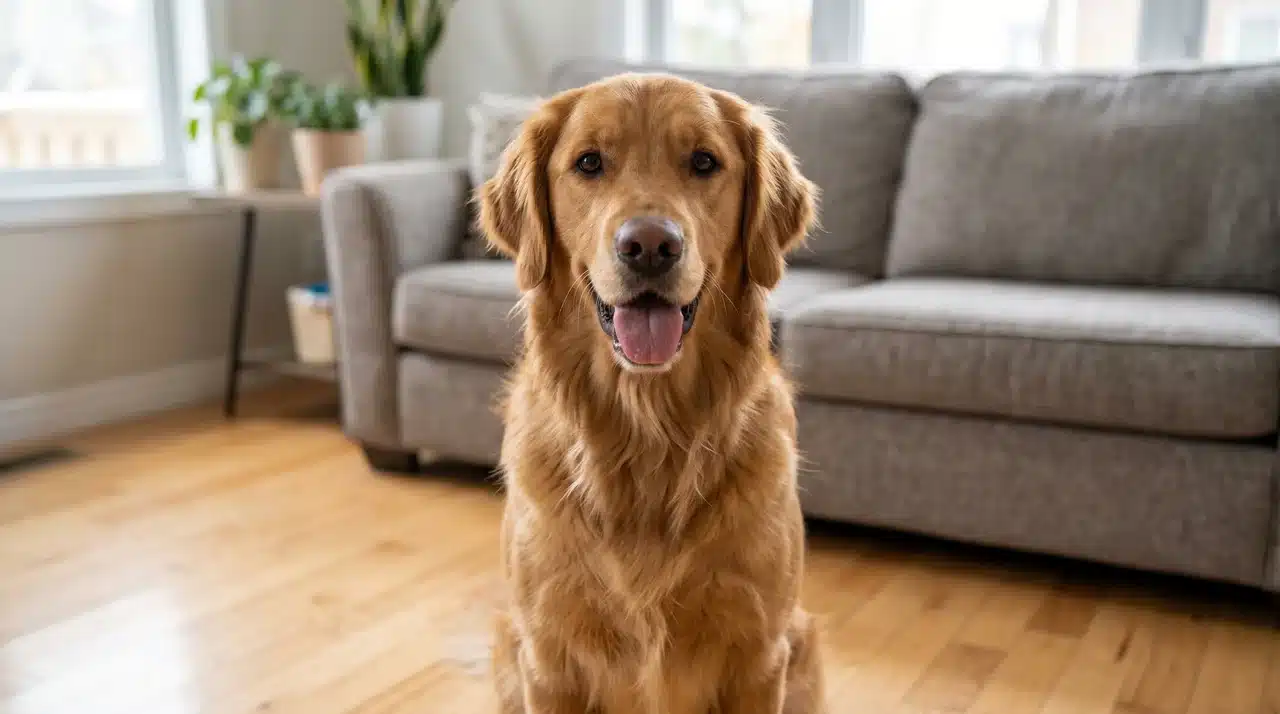
AI tools only know what your photo shows. A face-forward, well-lit photo with a plain background gives the clearest read of your pet’s features.
Following this makes sure your AI has the clearest possible view of your pet, setting you up for a more accurate and satisfying final portrait.
- Use a high-resolution, face-forward photo to capture details like coat texture, eye color, facial proportions, and markings.
- Avoid motion blur. Pets in mid-action are harder for the AI to interpret accurately.
- Keep backgrounds simple. Clutter or competing objects distract the model from your pet.
- Watch the angle. Side-on or upward shots can shift proportions, producing portraits that look close but not quite right.
- Manage contrast carefully. Dark pets on dark backgrounds or white pets in bright light lose detail. High contrast improves feature recognition.
Get the photo right first; everything else, like platform choice, style, or prompts, is secondary. Clear, well-lit images make the biggest difference in accurately capturing your pet.
Final Take
AI pet portrait generators make it easy to turn any photo into a unique, stylized artwork. The better your photo, the more accurate and detailed the result.
Remember to experiment with styles, prompts, and lighting. Even small adjustments to angle, contrast, or background can dramatically improve the likeness and personality captured in the portrait.
Try one of the free tools today and see your pet come to life. Upload a photo, pick a style, and start creating your custom portrait now.
Frequently Asked Questions
How do I make AI pictures of my dog for free?
You can upload your dog’s photo to free AI portrait tools like Adobe Firefly, NightCafe, PicLumen, or CGDream, select a style, and generate portraits instantly.
What app turns pet photos into art?
Popular options include Adobe Firefly, NightCafe, PicLumen, CGDream, ChatGPT, and other web apps like Bylo.ai or VisualGPT, all offering free ways to convert photos into artwork.
Can I create AI pet portraits without signing up?
Yes, some platforms like Bylo.ai and VisualGPT allow you to generate custom pet portraits without an account, while others may require free registration.
How do I make my iPhone photos recognize a pet?
Use a clear, well-lit photo of your pet. Upload it to an AI pet portrait generator; the AI identifies features and transforms them into a stylized portrait.