
The AI caricature trend caught on fast, and it’s easy to see why. Upload a photo, type a prompt, and get a cartoon version of yourself back in seconds. Millions of people have done it. Most had no idea what was actually driving the output.
Here’s what surprises people: the photo is almost the least important ingredient. The props, the setting, the career details- those come from somewhere else entirely. ChatGPT is working from your conversation history, not your face.
I’ll break down how the trend actually works, what’s building those specific details in the background, and what you’re sharing every time you participate. Enough to try it properly, or decide it’s not worth it.
What Is the AI Caricature Trend?
The AI caricature trend combines a photo of yourself with ChatGPT’s memory of your past conversations to generate a personalized, exaggerated cartoon of you and your work life.
The viral prompt: “Create a caricature of me and my job based on everything you know about me” spread across X, Reddit, and LinkedIn in early February 2026, with millions sharing their results.
That second part of the formula, the “everything you know about me,” is what most people miss.
When you upload your photo and ask ChatGPT to generate a caricature, it doesn’t just draw what it sees. The image itself is produced by DALL-E, OpenAI’s image model running inside ChatGPT.
- DALL-E handles the visual output: the cartoon style, the exaggerated features, the scene.
- ChatGPT handles everything else: reading your prompt, pulling from your conversation history, and feeding those details to DALL-E as instructions.
Someone who’s used ChatGPT for months might get a cartoon with their specific software on screen, their coffee order on the desk, and their industry in the backdrop. Someone with no history gets a much more generic result.
The photo gives ChatGPT your face. Your conversation history gives it everything else. That’s what makes it feel surprisingly personal and surprisingly revealing.
How to Do the AI Caricature Trend (Step by Step)
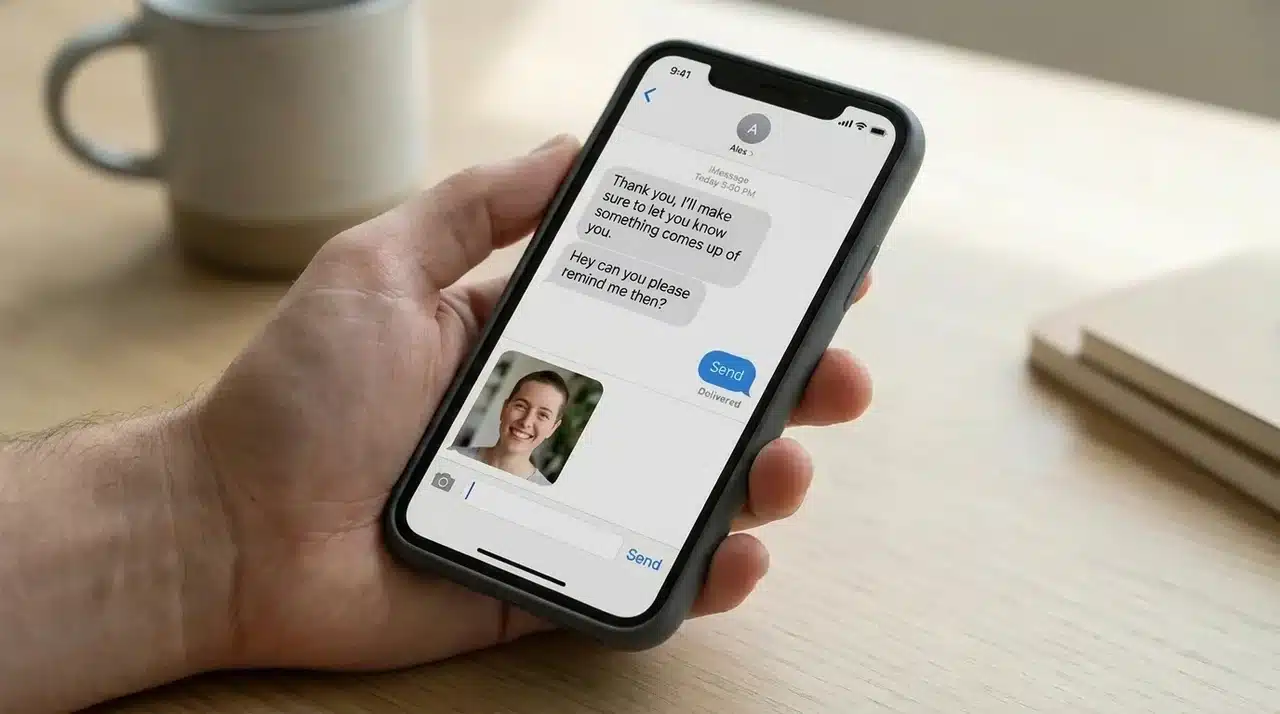
Open ChatGPT, upload a close-up photo of yourself, and ask it to generate a caricature. That’s the short version. Here’s what actually makes it work.
The base steps are simple; get these right before worrying about the prompt:
- Open ChatGPT on the app or website
- Upload a clear, close-up photo with good lighting, and face forward
- Type your prompt into the chat
- Save the image and share it
These four steps are the same whether you have months of chat history or you’re starting fresh today.
Photo quality matters more than people expect. DALL-E needs a clear face to anchor the caricature; it’s exaggerating your specific features rather than generating a generic face.
Blurry shots, group photos, or anything taken from a distance gives it too little to work with. The output usually looks like a stock illustration with approximate coloring. A close-up, well-lit headshot taken straight-on gives the best results.
The Core Prompt and Its Variations
The prompt doing most of the work right now is: “Create a caricature of me and my job based on everything you know about me.”
That works well if you have chat history. If you want more control over the style or setting, these variations shift what ChatGPT prioritizes:
- For a workplace focus: “Create a caricature of me at work, based on everything you know about my job and daily routine.”
- For a personal touch: “Create a caricature of me that captures my personality, hobbies, and work life based on our conversations.”
Small changes in wording noticeably affect the output. Use the version that matches the result you’re after.
If You’re New to ChatGPT
No chat history means ChatGPT has nothing personal to draw from. It’ll produce something, but it won’t feel like you.
The fix is simple: tell it what it doesn’t know. Add a line to your prompt:
“I’m a [job title]. I work with [tools/environment]. Outside work, I do [hobby or interest].”
The more specific you are, the more the result reflects your actual life rather than a generic professional cartoon.
If Your Result Looks Generic
If your caricature came back with a coffee cup and a laptop and nothing else, there are two likely causes, both of which are easy to fix.
First, check whether Memory is enabled.
Go to Settings → Personalization → Memory and see what ChatGPT actually has stored about you.
If the list is empty or sparse, it has very little to personalize the image with, and that shows in the output.
Second, ask ChatGPT directly: “What do you know about me?” before you run the caricature prompt.
The answer tells you exactly what it’s working with. If the response is thin, add context to your prompt before generating.
You can also refine after your first result.
Try: “Redo this, but add [your actual job title, a tool you use daily, or a habit you’ve mentioned].”
One round of that usually fixes the first output of a flat.
What ChatGPT Actually Uses to Build Your Caricature
The personalized details like the props, the setting, and the career references come from your chat history, not your photo. Understanding how that works explains why results vary so much from person to person.
Where Your Data Gets Stored
Every time you’ve used ChatGPT, you’ve left traces. You mentioned a deadline. You asked for help with a specific tool. You described your morning routine or vented about a work problem.
How that information gets retained depends on your account settings.
If you have Memory enabled, ChatGPT actively saves specific facts it thinks are worth keeping: your job title, tools you use, preferences you’ve mentioned.
You can see exactly what it has stored by going to Settings → Personalization → Memory. It will list every saved fact.
If Memory is off, ChatGPT works only from your active chat history – the full text of past conversations rather than a curated set of saved facts. Either way, it uses that retained information to build the scene around your face.
Why Two People Get Different Results
That’s why two people using the exact same prompt get completely different images. One person is at a standing desk with Notion open on screen. Another gets a generic office scene with a coffee cup. The difference isn’t the prompt; it’s the history.
What It Can and Can’t Remember
There’s an important limitation here. ChatGPT has no guaranteed recall of anything specific. It works from patterns, not records. So it might get your industry right but your tools wrong. It might capture your general vibe but miss the detail you expected it to remember.
The photo tells ChatGPT what you look like. Everything behind you in that image came from your conversations. Most people don’t realize that until they see the result.
What Happens to Your Photo and Personal Data
The caricature is the output. The exchange underneath it is worth looking at directly.
When you participate in this trend, you’re submitting two things: a photo of your face and a body of personal context, either pulled from your existing history or whatever you type into the prompt.
That combination is worth understanding before you hit send.
OpenAI’s standard terms permit the use of submitted data for service delivery. Depending on your settings, it may also contribute to model training. This isn’t unique to the caricature trend; it applies any time you use ChatGPT.
What’s different here is the concentration. A photo, a job description, and personal habits packaged into a single interaction; more than most people submit in a typical week of chatting.
The concern isn’t really about one image. It’s about the pattern. Doing this casually and seeing everyone else do it makes this kind of data sharing feel routine, and that normalization is the real issue, not any individual caricature.
If you want to limit what gets retained, two options work well:
- Disable chat history before you start: Settings → Data Controls → toggle off “Improve the model for everyone.”
- Use a temporary chat so the session isn’t stored
Either way, go in knowing what you’re sharing. The trend is fun, but the data exchange is real.
Wrapping Up
The AI caricature trend feels simple until you look closer. A photo goes in. A surprisingly personal cartoon comes out. And somewhere in between, your conversation history, habits, and daily context do most of the heavy lifting.
You now know why two people using the same prompt get completely different results, what ChatGPT and DALL-E are each doing in the background, and what data changes hands when you participate.
The trend is fun. So is the data exchange behind it, once you know what it actually involves. Go in with both in mind.
If you’re ready to try it, start by checking your ChatGPT memory and history settings first. One small step most people skip, and probably shouldn’t.
Frequently Asked Questions
Can ChatGPT turn any photo into a caricature?
Yes, but use a clear, close-up photo for the best result. Blurry or group shots produce generic output. The photo supplies your face, and your chat history supplies the personalized details behind it.
What prompt works best for the caricature trend?
Start with: “Create a caricature of me and my job based on everything you know about me.” New to ChatGPT? Add your job title, daily tools, and one personal interest directly into the prompt.
Does participating in the caricature trend affect my privacy?
It can. You’re submitting a photo along with personal context. Depending on your settings, that data may be retained. Disable chat history or use a temporary chat session to limit exposure.
Can I do this on platforms other than ChatGPT?
Yes, Gemini supports the same prompt-and-photo upload approach. Results vary by platform. Most viral examples from early 2026 were generated specifically on ChatGPT.