Working in Google Docs for hours can get tiring when a bright white screen is staring back at you. I often find that a darker screen feels easier on the eyes, especially when writing late at night.
That is where Google Docs dark mode can help. The catch? Google Docs does not offer a built-in dark mode on desktop, so you need a workaround.
You can use a browser extension, try Chrome’s experimental dark-mode setting, or change the document’s page and text colors. Mobile users have a built-in dark theme.
The right option depends on how you use Google Docs and what you want to change.
Does Google Docs Have a Real Dark Mode?
Google Docs does not currently have a built-in dark mode for its desktop web version, so you won’t find a dark theme option in the desktop settings. On mobile, things are different.
The Google Docs app supports a built-in dark theme on Android, iPhone, and iPad, which changes how you view documents without affecting how other people view them.
On Android, you can select Dark under Settings > Choose theme, while iPhone and iPad users can find it under Settings > Theme.
Desktop users who want a darker workspace need to use a browser extension or another workaround instead.
How Do You Get Google Docs Dark Mode on Desktop?
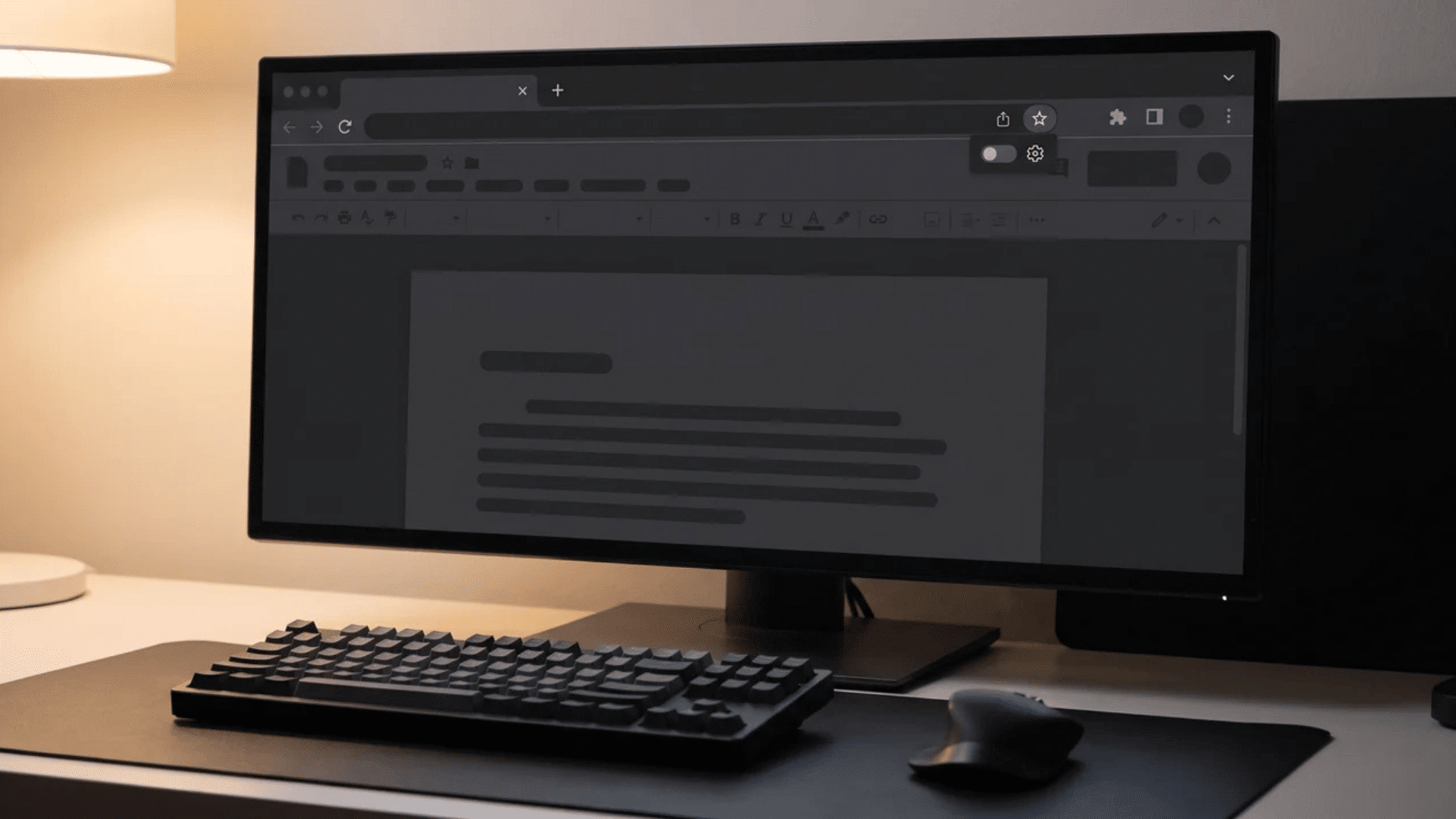
Google Docs has no built-in dark mode on desktop, but you can use a browser extension, Chrome’s experimental dark-mode flag, or change the document’s page and text colors.
Each option works differently, so choose based on whether you want to change your screen or the document itself.
1. Using a Browser Extension
A browser extension can give Google Docs a darker appearance without requiring you to change the document’s page or text colors. Dark Reader is one current option available through the Chrome Web Store.
Its listing identifies Dark Reader Ltd as the developer and says the extension can apply dark mode to websites.
- Open the Chrome Web Store: Open Chrome and go to the Chrome Web Store.
- Search for Dark Reader: Search for Dark Reader and check that Dark Reader Ltd is listed as the developer before installing it.
- Review the Details: Check the extension’s permissions and privacy information before adding it. Only install an extension if you are comfortable with the access it requests.
- Add the Extension: Click Add to Chrome and complete the installation. You can then open Dark Reader from Chrome’s Extensions menu; the same three-dot menu you’d use if you wanted to turn a website into a shortcut on your desktop.
- Enable it for Google Docs: Open Google Docs and use Dark Reader’s controls to turn dark mode on for the site. You can turn it off again whenever you want.
This method changes how Google Docs is displayed in your browser rather than changing the document’s page color. Dark Reader also provides settings for adjusting brightness, contrast, and other display options.
2. Using Chrome’s Auto Dark Mode
Chrome has an experimental Auto Dark Mode for Web Contents flag that can darken websites without their own dark theme. If available, it may affect other sites and cause unexpected colors or page elements.
- Open Chrome flags: Enter chrome://flags in Chrome’s address bar and press Enter.
- Search for the flag: Use the search box to look for Auto Dark Mode for Web Contents. If the flag does not appear, it may not be available in your current Chrome version.
- Enable the flag: If it is available, open its drop-down menu and select Enabled.
- Relaunch Chrome: Click Relaunch to restart Chrome and apply the setting.
- Check Google Docs: Open Google Docs and see how the pages and interface appear. If the result causes display problems, return to chrome://flags, find the setting, and change it back to Default.
Because Chrome flags are experimental, this method is less predictable than using a regular browser extension. It can also affect websites other than Google Docs, so it may not be the best choice if you want dark mode only in Docs.
3. Changing the Google Docs Page Color
You can also create a dark-looking document by changing its page color and text color. Unlike a browser extension, this method changes the document itself.
Google Docs provides the Page color option under File > Page setup for documents using Pages format.
- Open Your Document: Open the Google Doc you want to change on your computer.
- Open Page Setup: Click File in the top menu, then select Page setup.
- Select Pages: In the Page setup window, select Pages at the top. If the document uses Pageless format, the Pages option is needed for the page-color setting. Google also allows you to change the background color in Pageless format.
- Choose a Dark Page Color: Under Page color, select black, dark gray, or another dark shade, then click OK.
- Change the Text Color: Select your text and use the Text color button in the toolbar to choose white or another light color.
This method changes the document’s colors rather than the overall Google Docs interface. Since the page color is part of the document, check how the file looks before sharing, exporting, or printing it.
What to Know Before Using Dark Page Colors in Google Docs

A dark page can make a document easier to view in low light, but it changes the document itself. Keep these points in mind before using a dark background with light text.
- Document changes: Page and text colors are saved with the document, so they can affect how the file looks when you reopen it.
- Sharing: The dark page color is part of the document, so check its appearance before sharing it with others.
- Printing: A dark page background can print with the document and may use more ink or toner than a white page.
- PDF export: Page and text colors may appear in an exported PDF, so check the final file before sharing it.
- Ink and toner: Large dark areas generally use more ink or toner, which can increase printing costs.
A dark page can work well for personal writing, but check the colors before sharing, printing, or exporting the document. You may want to switch back to a light page when creating a document for others.
How Do You Turn On Google Docs Dark Mode on Mobile?
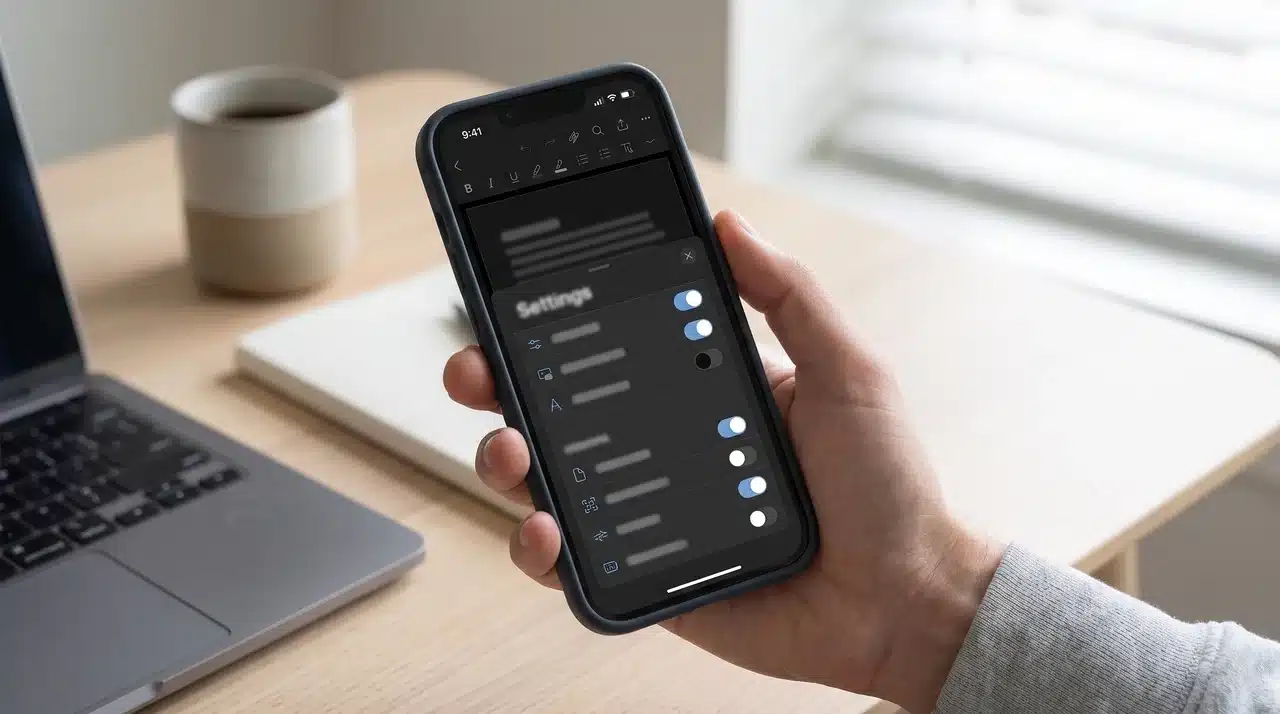
Google Docs has a built-in dark theme on Android, iPhone, and iPad. The setting changes how you view documents in the app, while collaborators continue to see the document based on their own settings.
On Android
You can turn on dark theme directly from the Google Docs app settings. The same menu also lets you switch back to Light or use your device’s default theme.
- Open Google Docs: Launch the Google Docs app on your Android phone or tablet.
- Open the menu: Tap the Menu icon in the top-left corner.
- Open Settings: Tap Settings from the menu.
- Choose your theme: Tap Choose theme.
- Select Dark: Choose Dark to switch Google Docs to a dark theme.
The app will adjust the document view to fit the dark theme. If you want to see how the document looks to collaborators, open the document, tap More, and select View in light theme.
On iPhone and iPad
The Google Docs app also includes a separate theme setting on iPhone and iPad. You can choose Dark, Light, or System default without changing the document’s settings.
- Open Google Docs: Launch the Google Docs app on your iPhone or iPad.
- Open the menu: Tap the Menu icon in the top-left corner.
- Open Settings: Tap Settings.
- Open Theme: Tap Theme to view the available options.
- Select Dark: Choose Dark to turn on the dark theme.
The dark theme changes how you view the document in the app and does not change the theme used by collaborators. To preview the document in the light theme, open it, tap More, and select View in light theme.
What Happens If Google Docs Dark Mode Looks Wrong?
Dark-mode workarounds can sometimes cause odd colors or display issues.
If an extension makes Docs look wrong, disable it or adjust its settings, much like fine-tuning your Google account privacy settings when something isn’t behaving the way you expect.
If Chrome’s experimental dark-mode flag causes problems, return to chrome://flags and set it back to Default. For a dark page created with Page setup, restore the page and text colors to your preferred settings.
To turn off a browser-based workaround, disable the extension or reset the Chrome flag. On mobile, open Google Docs Settings > Theme on iPhone or iPad, or Settings > Choose theme on Android, then select Light or System default.
Wrapping Up
Getting Google Docs dark mode on desktop takes a little extra work, but you have several options to choose from. A browser extension can change the way Docs looks on your screen, while Chrome’s experimental setting offers another option.
You can also use dark page and light text colors if you want the document itself to look darker.
On Android, iPhone, and iPad, the Google Docs app has a built-in dark theme. I recommend checking your document before sharing, printing, or exporting it when using page colors.
Which method worked best for you? Share your experience in the comments!
Frequently Asked Questions
Does Google Docs have a dark mode on PC?
No. Google Docs does not currently offer a built-in dark theme for its desktop web version. You can use a browser extension or another workaround to make Docs appear darker on your screen.
Can I get Google Docs dark mode without an extension?
Yes. You can change the document’s page color under File > Page setup and select a dark color, then change the text to a light color. This changes the document itself rather than just the way Google Docs looks on your screen. Google Docs also supports text-color changes from the toolbar.
Will Google ever add a built-in desktop dark mode?
Google has not announced a built-in desktop dark mode for Google Docs. At present, the native dark theme is available in the Google Docs mobile apps, while desktop users need a workaround.