The Chromebook clipboard is one of those features that sits quietly in the background. Most people never know it’s there.
Knowing how to open clipboard on Chromebook unlocks a faster, cleaner way to manage everything you copy throughout the day.
It also comes with limits that aren’t obvious until something goes missing. Knowing them upfront saves a lot of frustration later.
Here you’ll find everything you need to know about using, managing, and troubleshooting the Chromebook clipboard from start to finish.
How to Open the Clipboard on a Chromebook?
Press Search + V to open the clipboard on your Chromebook. On some models, that key is called the Launcher key, the circular icon at the bottom left of your keyboard.
A small panel will pop up right where your cursor is. From there, you can click any copied item to paste it.
This shortcut works everywhere on your Chromebook, not just in Chrome. Docs, Gmail, any app. Same shortcut, same panel.
Don’t confuse this with Ctrl+V, which just pastes your most recent copy. Search + V gives you the full clipboard panel.
There’s also a mouse-based route: right-click inside any text field and select Clipboard from the context menu. It opens the same panel if you’d rather not use the keyboard.
How to Use Clipboard History Once it’s Open?
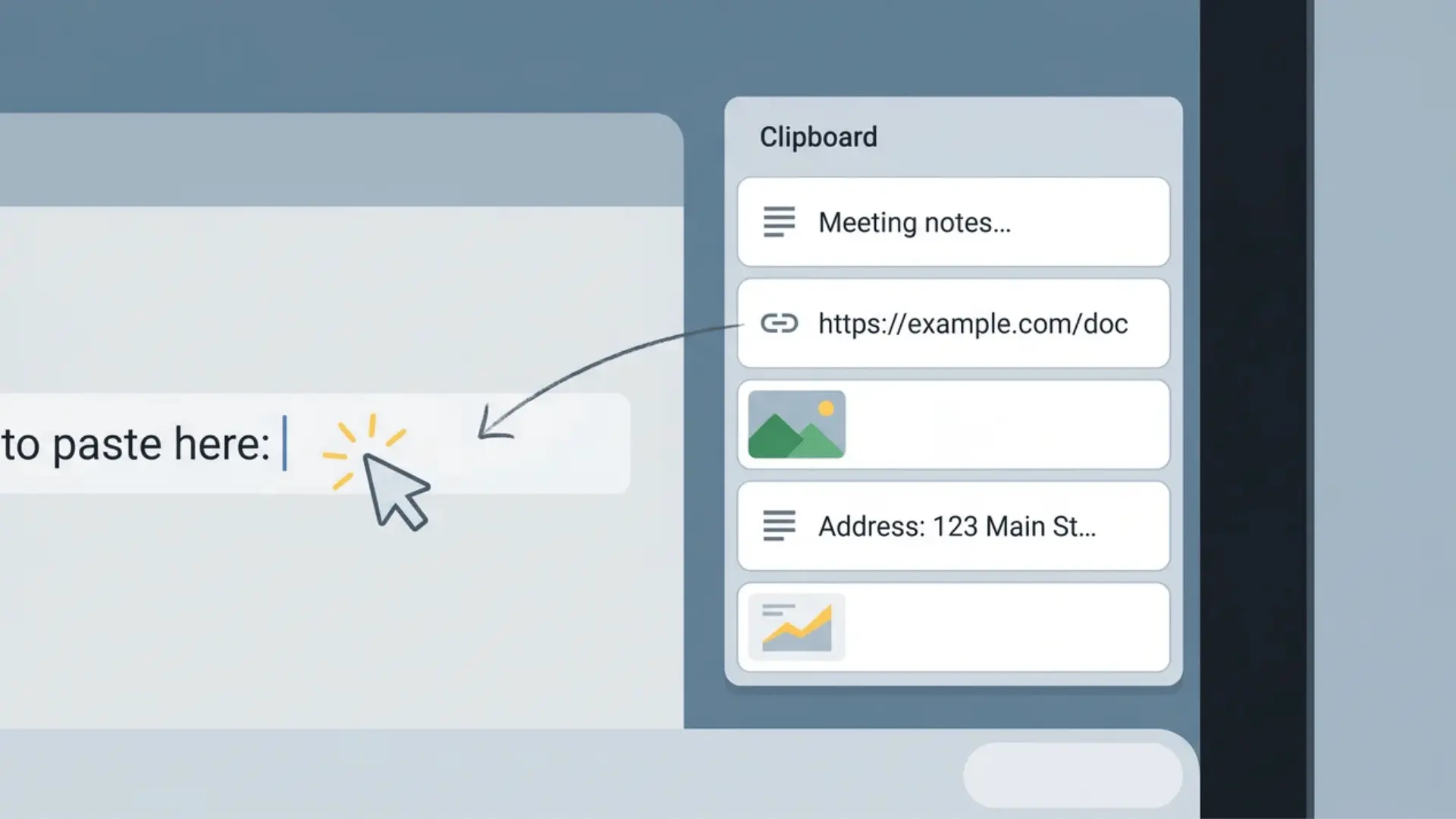
The clipboard panel holds up to five recently copied items. Click any one of them, and it pastes immediately.
Here’s how every part of the panel works: copying, pasting, deleting, and navigating without a mouse.
Copying Items to the Clipboard
Copy anything the same way you normally would; Ctrl + C for text, or right-click and select Copy for images and links.
Each new copy gets added to the top of the panel. Once you hit five items, the oldest one drops off automatically.
Pasting from Clipboard History
Place your cursor exactly where you want the content before opening the panel. Press Search + V, then click the item you need.
The panel closes on its own after you select something. The content appears right where your cursor was placed.
Deleting Items from the Panel
Each item has a small X on the right side. Click it to remove that item permanently from your clipboard history.
There’s no undo once it’s gone. Double-check before you delete, especially if you copied something you might still need.
Navigating the Panel by Keyboard
You don’t need a mouse at all. Open the panel with Search + V, then use Tab or arrow keys to move between items.
Press Enter to paste whichever item is selected. It’s faster than reaching for the mouse once you’re used to it.
What the Chromebook Clipboard Can and Cannot Do?
The clipboard holds exactly five items, and history clears completely when you sign out or restart.
Most people only find this out after something goes missing. Here’s what’s actually happening inside the panel:
The five-item limit works on a rolling basis. When you copy a sixth item, the oldest one drops off automatically. There’s no warning and no way to recover it.
That’s by design, not a bug.
What most people miss is that images, links, and text each count as one slot equally. Copy three images back to back, and you’ve only got two slots left for text.
This is why copied text sometimes seems to disappear even when you haven’t copied that many things. A few images can quietly push text out of the panel.
History also doesn’t carry over between sessions. Sign out or restart, and the panel starts fresh.
What to Do if the Clipboard Shortcut isn’t Working?
An empty clipboard panel after a restart is normal; the history just doesn’t carry over between sessions, so the feature isn’t broken.
That said, there are a few situations where the shortcut genuinely doesn’t behave as expected. Here’s how to tell them apart.
Panel Opens but Appears Empty
This happens to everyone after a restart. Before assuming something is broken, do a quick check.
- The panel is always empty at the start of a new session; this is expected.
- Copy anything small, then reopen with Search + V to confirm the feature is working.
- If items appear after that, there’s nothing wrong with your clipboard.
A single copied item is enough to confirm everything is working as it should.
Shortcut Does Nothing
If the shortcut produces no response at all, two things are worth checking first.
- Clipboard history requires ChromeOS 89 or later. Go to Settings, select About ChromeOS, and check your version number.
- On Dell and some other Chromebooks, the Search key may look different; look for a magnifying glass or circle icon on your keyboard.
If your version is up to date and the key is correct, try restarting once and testing again.
If restarting doesn’t help, check whether the feature is enabled at the flag level.
Open Chrome and type chrome://flags in the address bar. Search for Clipboard History. If it’s set to Default or Disabled, switch it to Enabled and restart your Chromebook.
This rarely comes up on updated devices, but it’s the fix when nothing else works.
Clipboard Not Retaining Items
Items dropping out of the panel usually come down to one thing: the five-item limit.
- Images, links, and text each take one slot; the five-item cap applies to all of them equally.
- Copy six things in a row, and the first is already gone.
- This is by design, not a malfunction.
Once you know how the limit works, the disappearing items start to make sense.
How to Get More than 5 Clipboard Slots?
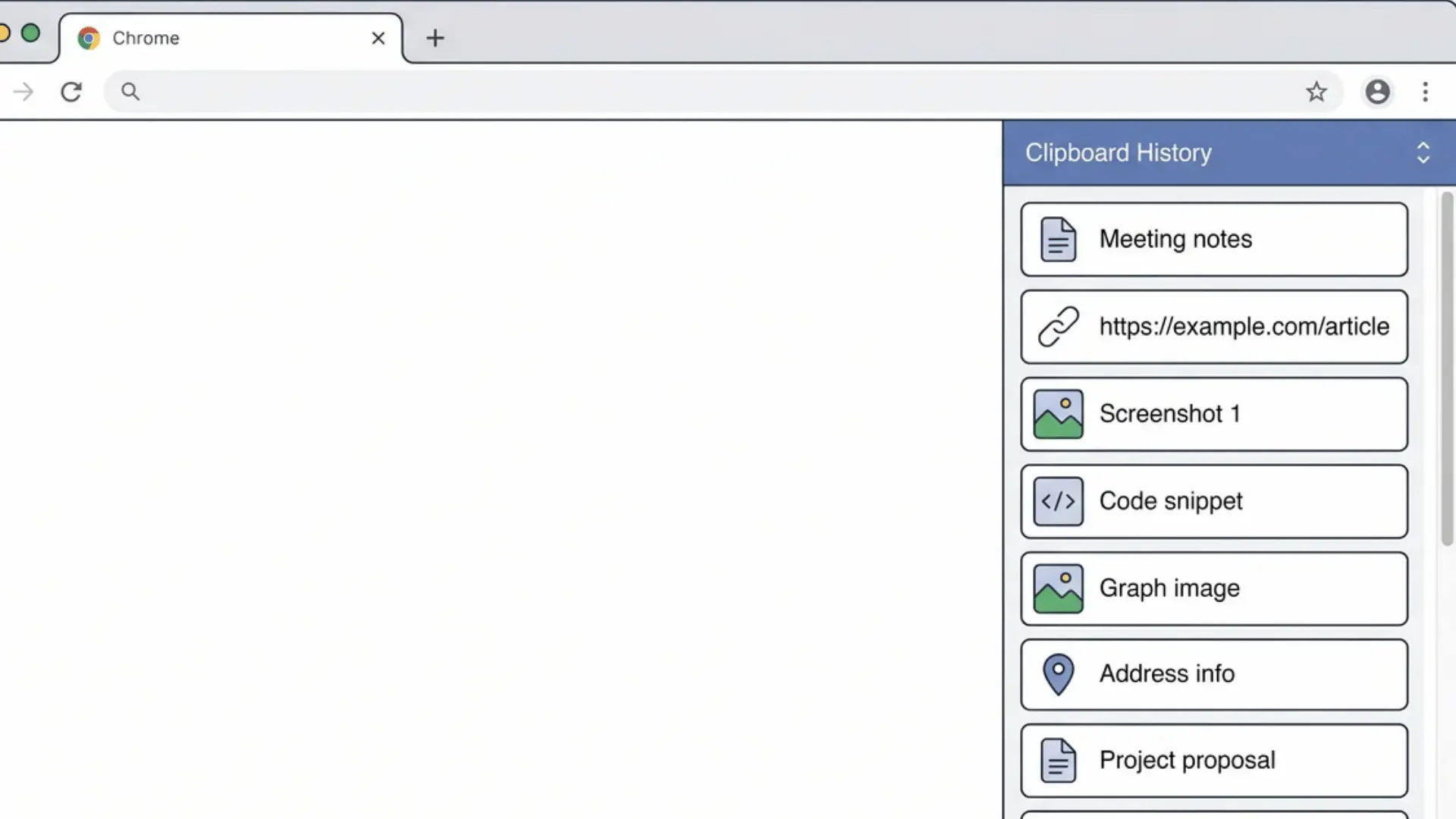
The five-item limit is exactly why clipboard extensions exist. You can find them in the Chrome Web Store, not the Play Store.
Search for “clipboard manager” in the Web Store and you’ll find several options. They vary in how much history they store and how they handle your data.
A few things worth knowing before you install one. Clipboard extensions store history inside the browser, not system-wide. That means they may not capture everything you copy outside of Chrome.
More importantly, these extensions can see everything you copy, including passwords and personal details. Check the permissions before you install. If an extension asks for more access than it needs, that’s a reason to pause.
A well-reviewed option with minimal permissions is a safer starting point than a top-ranked result you haven’t heard of.
Wrapping Up
Once you know how to open the clipboard on Chromebook, the shortcut becomes second nature within a day or two of regular use.
Most of the confusion around missing items comes down to how slots are shared between text, images, and links.
Now you know what the clipboard can do, where it falls short, and how to fix it when something feels off.
Open a new tab, copy something, and test the shortcut right now. Muscle memory builds faster than you’d think.
Frequently Asked Questions
What does Search + V do on a Chromebook?
It opens the clipboard history panel, showing the last five copied items: text, links, or images. Click any item to paste it instantly.
Why is my clipboard history empty on Chromebook?
Clipboard history clears every time you sign out or restart. The panel starts fresh each session and won’t show anything until you copy something new.
How do I allow a website to access my clipboard on Chromebook?
Go to Chrome Settings, then Privacy and Security, then Site Settings, then Clipboard. Manage site permissions from there.
Does Chromebook clipboard history save images?
Yes. Images take one slot, the same as text or links. Copy several images in a row, and older text items get pushed out automatically.