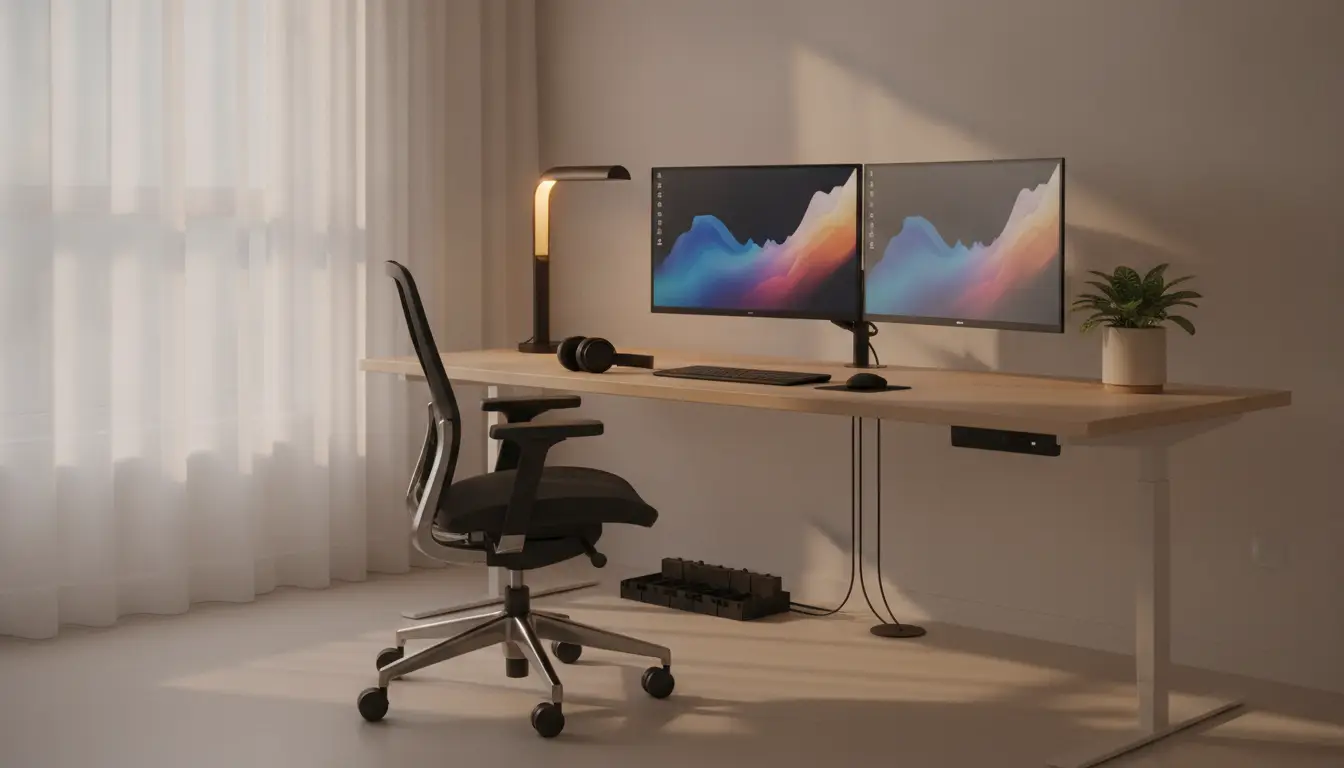
Welcome to the world of smart home offices, where technology meets productivity. Setting up a workspace that’s both functional and efficient is crucial, whether you’re working from home part-time or full-time. With the right gadgets and tools, you can transform your home office into a productive haven. If you’re looking to save while upgrading your setup, consider using a StinkyInkShop discount voucher for great deals on essential tech items.
Importance of a Well-Equipped Home Office
A well-equipped home office isn’t about having the fanciest gear—it’s about removing friction. Every small annoyance (laggy Wi‑Fi, a wobbly chair, bad lighting, constant cable chaos) steals a little attention. Multiply that by dozens of moments per day and you get the real productivity killer: context switching.
The more your setup “just works,” the more your brain stays on the task instead of on troubleshooting.
There’s also a direct link between the tools you use and how fast you can move. Dual monitors can cut down on tab hopping. A proper keyboard and mouse can make writing, design, and spreadsheet work feel less like a chore.
A decent webcam and mic can turn meetings from painful to tolerable. In short: better inputs, fewer interruptions, smoother output.
Comfort matters just as much as efficiency. If your chair forces you into a slouch, your body will start demanding breaks—sometimes loudly (hello, neck pain). If your desk height is off, your wrists and shoulders pay for it. If your room is dim or full of glare, your eyes fatigue faster and your focus drops. When your workspace supports your body, you last longer and finish stronger—without that end-of-day “I’m cooked” feeling.
And finally, a dialed-in home office sets a tone. It’s a psychological switch: you sit down, and it feels like work mode. That structure helps with consistency, especially when home and office are the same building, five steps apart.
The goal isn’t perfection—it’s a setup that helps you start faster, stay focused longer, and end the day with energy left.
Must-Have Tech Gadgets
A smart home office doesn’t need to look like a spaceship. It just needs a few key pieces of tech that remove friction—less waiting, less fiddling, fewer distractions. These are the upgrades that actually pay you back in time and focus.
High-Speed Internet Connection
If your internet is shaky, everything else is just decoration. Video calls stutter, files take forever to upload, and “quick” tasks turn into mini breakdowns.
- Why it’s non-negotiable: stable calls, fast cloud access, smooth screen sharing, fewer dropped connections.
- Fiber vs. cable (quick take):
- Fiber-optic: typically faster upload speeds and better consistency—great if you’re on Zoom all day, sending large files, or backing up to the cloud.
- Cable: widely available and often fast for downloads, but upload speeds can lag and performance can dip during peak hours.
- Pro move: place your router centrally and consider a mesh Wi‑Fi system if you’ve got dead zones. If your desk setup allows, Ethernet still wins for rock-solid reliability.
Ergonomic Office Furniture
Not glamorous, but it’s the difference between “I can work” and “my back hates me.” Good ergonomics keeps you comfortable, which keeps you focused—simple math.
- Ergonomic chair benefits: supports your lower back, helps your posture, reduces neck/shoulder tension.
- Desk setup wins: a desk at the right height (or a sit-stand desk) keeps wrists and shoulders from doing weird things all day.
- Buying tips (keep it practical):
- Chair: prioritize adjustable seat height, lumbar support, and armrests you can move.
- Desk: make sure you can sit with elbows roughly 90 degrees, feet flat, screen near eye level.
- Small space? A compact desk plus a monitor arm can feel like a massive upgrade without eating the room.
Smart Assistants
This is the low-effort productivity boost. A smart assistant isn’t about being flashy—it’s about offloading the tiny tasks that break your flow.
- What they do well: timers, reminders, calendar prompts, quick weather/traffic checks, hands-free notes.
- Useful home office scenarios:
- “Remind me to send the invoice at 3.”
- “Start a 25-minute focus timer.”
- “Add ‘call supplier’ to my to-do list.”
- Tip: keep routines simple—one or two automations (like a workday start routine) beats a complicated setup you’ll never use.
Noise-Canceling Headphones
Focus is a resource. If your environment is noisy—neighbors, kids, roommates, street sounds—noise-canceling headphones can be the fastest way to get your brain back.
- Why they’re clutch: active noise cancellation reduces low, constant sounds (traffic, fans, chatter), making it easier to concentrate and hear calls clearly.
- What to look for: comfort for long wear, decent mic quality for meetings, and reliable Bluetooth connection.
- Popular go-to options:
- Sony WH-1000XM series (strong noise canceling, great sound)
- Bose QuietComfort series (comfort king, excellent ANC)
- Apple AirPods Pro / Max (great integration if you live in Apple land)
In short: get your connection stable, your body supported, your tasks streamlined, and your distractions muted. That’s most of the smart home office battle won.
Essential Software and Applications
Hardware gets the spotlight, but software is what keeps your day from turning into a tab-juggling circus. The right apps make your workflow smoother, your files easier to find, and your home network a lot less risky. Aim for tools that: (1) reduce repetition, (2) keep everything in one place, and (3) don’t require a weekly “system rebuild” to stay organized.
Cloud Storage Solutions
Cloud storage is the backbone of a modern home office. It stops files from living on one laptop like a single point of failure, and it makes “I’ll send it when I’m back at my desk” a thing of the past.
- Why it matters: automatic backup, easy sharing, version history (aka: undo for mistakes), and access from any device.
- Popular picks:
- Google Drive: great for Docs/Sheets collaboration and quick sharing links.
- Dropbox: clean syncing, strong file handling, solid for creative teams.
- OneDrive: best if you live in Microsoft 365 (Word/Excel/Teams).
- Small setup tips that pay off:
- Create a simple folder system (Projects / Admin / Personal) and stick to it.
- Turn on two-factor authentication. Non-negotiable.
- Use naming rules like 2026-08 ClientName ProjectName v1 so search actually works.
Project Management Tools
If your project plan is “messages + memory,” you’re one busy week away from chaos. Project management tools give your work a home: tasks, owners, deadlines, and context—without a 40-email thread.
- Trello (boards): quick, visual, low friction. Best for personal workflows or small teams.
- Asana (tasks + timelines): more structure, better for multi-step projects with dependencies.
- Slack (communication hub): not a project manager by itself, but it connects everything—updates, approvals, quick decisions.
How to keep these tools helpful instead of noisy:
- Keep one source of truth for tasks (don’t split tasks across three apps).
- Use channels/boards per project, not per random idea.
- Set lightweight rules: “If it’s actionable, it’s a task. If it’s info, it’s a note.”
Security Software
A home office is still a professional environment—just with more smart devices, more Wi‑Fi usage, and usually less IT oversight. Cybersecurity isn’t about paranoia; it’s about not losing a week (or a client) to something preventable.
- Antivirus/endpoint protection: choose a reputable suite that updates quietly in the background. Windows and macOS have built-in protections, but adding a well-rated security tool can help with phishing, malicious downloads, and exploit protection.
- VPN services: useful when working on public Wi‑Fi (coffee shops, hotels). A VPN encrypts your connection so you’re not broadcasting your activity to the room.
- Core habits that beat most threats:
- Use a password manager and unique passwords.
- Turn on automatic updates for your OS, browser, and key apps.
- Back up critical folders (cloud + local, if your work is mission-critical).
- Treat unexpected attachments and “urgent” login links as suspicious by default.
Good software doesn’t just speed you up—it keeps your work findable, shareable, and safe. That’s the real productivity win.
Creating an Optimal Environment
Tech can’t save a workspace that feels bad to sit in. Your environment is the quiet multiplier: it affects energy, focus, and how long you can work before your brain taps out. Two levers matter most—lighting and personalization.
Proper Lighting
Bad lighting is a slow productivity leak. It causes eye strain, headaches, and that “why am I tired?” feeling by mid-afternoon. Good lighting keeps you alert and makes screens easier to read.
A simple setup that works in most rooms:
- Prioritize natural light (but control it). Put your desk near a window if you can, ideally with the light coming from the side (not blasting straight into your eyes or onto your monitor). Add blinds or curtains to kill glare during bright hours.
- Use layered lighting instead of one harsh ceiling bulb. Aim for:
- Ambient light: a ceiling light or floor lamp that fills the room softly.
- Task light: a desk lamp aimed at your work area, not your screen.
- Optional bias light: a small light behind your monitor to reduce contrast and eye fatigue in the evening.
- Choose the right bulb color.
- 4000–5000K (neutral/cool white) = crisp, daytime focus.
- 2700–3000K (warm) = cozy, but can make you sleepy if it’s your only light while working.
- Make it adjustable. A dimmable lamp or smart bulb lets you match light to time of day: brighter in the morning, softer later. Less fighting your own biology.
Quick check: if you’re squinting, leaning forward, or constantly adjusting your monitor brightness, your lighting is probably off.
Personalized Workspace
Personalization isn’t about turning your desk into a souvenir shop. It’s about making the space feel like your workspace—so you actually want to sit down and start.
Keep it intentional:
- Pick 2–3 “anchors.” One plant, one piece of art, one photo—done. Enough to create identity without clutter.
- Use organization that looks good. A cable tray, a decent pen cup, a simple shelf. When storage is easy, mess doesn’t pile up.
- Add one comfort upgrade you’ll notice daily. A footrest, a better desk mat, a small fan, or a wrist rest. Small things compound.
- Protect your “work mode” cues. Same place, same setup, same lighting. Your brain learns the pattern: sit down → focus happens.
- Avoid visual noise. If you tend to procrastinate, keep the desk surface mostly clear. Put “interesting distractions” (gadgets, books, random paperwork) out of immediate reach.
The goal is a space that’s functional first, pleasant second, and never chaotic. When your environment stops fighting you, your tech can finally do its job.
Tips for a Smooth Transition to a Smart Home Office
Switching from a basic desk-and-laptop setup to a smart home office isn’t a weekend makeover—it’s a series of small upgrades that remove friction from your day. The goal is simple: fewer annoyances, fewer distractions, less time wasted.
1) Start With Your Biggest Daily Pain Point
Don’t buy tech because it’s trendy. Buy it because it fixes something you feel every day.
- Meetings constantly glitching? Invest in a better router or upgrade your internet plan first.
- Back/neck pain by 3pm? Chair/desk comes before smart gadgets.
- Loud housemates/neighbors? Noise-canceling headphones will change your life.
One problem. One fix. Then move on.
2) Upgrade in Layers (Foundation → Tools → Automation)
A smart office works best when the basics are solid.
Layer 1: Foundation
- Stable internet + decent router placement (central, not hidden behind furniture)
- Power and cable management (a surge protector and some clips go a long way)
- Lighting that doesn’t punish your eyes by mid-afternoon
Layer 2: Tools
- Cloud storage for painless file access across devices
- A project/task system you’ll actually open daily (not the fanciest one)
- Security basics: password manager, antivirus, VPN if you’re on public Wi‑Fi
Layer 3: Automation
- Smart assistant routines (start work, end work, meeting mode)
- Smart plugs/lights to reduce little “get up and fiddle with it” moments
- Scheduled backups so you never think about them again
3) Keep the Learning Curve Under Control
New tech is great until it hijacks your attention.
- Add one new tool per week, not five in a day.
- Set a 30-minute “setup window” outside work hours to avoid tinkering during focus time.
- If a gadget needs constant babysitting, it’s not “smart”—it’s a hobby. Replace or simplify.
4) Protect Focus With a Few Default Modes
Make it easy to get into work mode and hard to get distracted.
- Create a “Focus” routine: silence non-work notifications, turn on a neutral light setting, start a timer or playlist.
- Use noise-canceling headphones or background noise as a consistent cue.
- If you use a smart assistant, set quick commands like: “Meeting mode” (mute phone, reduce lights, start Do Not Disturb).
5) Make It Reliable Before You Make It Fancy
Smart setups should fail gracefully.
- If your internet drops, can you hotspot fast? (Have the password saved and tested.)
- If your smart lights fail, can you still turn on a normal lamp?
- Keep the essentials working without an app: keyboard, mouse, webcam, charging.
6) Do a Monthly 10-Minute Reset
This is the unsexy part that keeps everything smooth.
- Update software/firmware (router, laptop, security tools)
- Clear downloads/desktop clutter
- Check backup status
- Re-tighten cable management if it’s turning into spaghetti again
7) Budget Smarter: Buy the “Boring Best”
it directly affects comfort and uptime: chair, desk height, lighting, internet gear, headphones. Then pick up the extras gradually—especially if you can save with deals or vouchers when you’re ready to add the next piece.
As Tom Church, Co-Founder of LatestDeals.co.uk, the discount code platform, puts it: “The best upgrades are the ones you’ll notice every single day—focus on fixing the biggest friction first, then use deals and voucher codes to stretch your budget when you’re ready for the next layer.”
A smart home office isn’t about having the most gadgets. It’s about making work feel lighter: fewer steps, fewer distractions, more flow. Add tech slowly, keep it stable, and let the setup serve you—not the other way around.