
Meetings move fast. People talk over each other. Decisions happen in seconds. By the end, you’re often trying to remember who agreed to what.
That’s why the idea of a Google Meet AI note taker has exploded. These tools promise to capture the conversation, turn it into notes, and pull out action items automatically.
I’ve tested several of these tools across different types of meetings, like quick team syncs, longer planning calls, and discussions where multiple people are speaking at once.
What becomes clear pretty quickly is that not every AI note taker behaves the same way. Some focus on transcripts, others try to summarize conversations, and a few attempt to identify decisions and tasks automatically.
Tools such as Lunchbreak AI are part of a growing group of systems designed to help teams capture meetings automatically and turn them into usable notes.
In this guide, you’ll see the main tools used with Google Meet, how they connect to meetings, and what really separates them. By the end, you’ll have a clearer way to decide which one fits your workflow.
Best AI Note Takers for Google Meet (Free & Paid)
Several tools can automatically record, transcribe, and summarize Google Meet calls. Some run directly inside your browser, while others join meetings like a participant and process the recording afterward.
Each tool works a little differently, which is why the experience can vary even when they promise similar features.
Some teams also record important meetings so they can later reuse them for documentation or training video production, especially when explaining internal processes or workflows.
1. Gemini “Take Notes for Me” (Built-in Google Meet AI)
Google now includes an AI note-taking feature inside Google Meet through Gemini.
When enabled, the system listens during the meeting and produces:
- A written summary
- Key discussion points
- Action items and follow-ups
The notes are usually saved automatically to a Google Doc and shared with meeting participants.
Because it is built into Google Meet, it connects smoothly with Google Calendar, Docs, and Workspace accounts. There is nothing extra to install, and no external bot joining the call.
The main advantage is simplicity. You start the meeting, activate the feature, and the notes appear afterward.
The limitation is flexibility. Built-in AI tools typically focus on summaries rather than deeper meeting analytics or long-term searchable archives.
2. Tactiq (Chrome Extension Note Taker)
Tactiq works as a Chrome extension that runs directly in your browser during meetings. Instead of adding a bot participant, it reads captions and audio in real time while you are on the call.
Key capabilities include:
- Live transcription during the meeting
- Highlighting important statements
- Marking tasks or decisions
Because it runs locally in your browser, it feels less intrusive than tools that join meetings as additional participants.
The quality of notes still depends heavily on transcription accuracy and how clearly people speak during the meeting.
3. Otter.ai (Meeting Assistant Bot)
Otter.ai is one of the most widely used AI meeting assistants. Instead of running locally, Otter sends a bot participant into the meeting. That bot records the conversation and later produces transcripts and summaries.
Typical outputs include:
- Full meeting transcript
- AI-generated summary
- Action items and highlights
Bot-based tools like Otter often offer better cross-meeting search because transcripts are stored in a centralized system.
The trade-off is visibility. Everyone in the meeting can see the bot participant.
4. Read AI (Meeting Summaries and Analytics)
Read AI focuses more on analyzing meetings rather than simply transcribing them. After the meeting ends, it produces structured reports that may include:
- Meeting summaries
- Highlighted moments
- Participation insights
Some systems estimate engagement levels based on speaking time and conversation patterns. These features can be useful for teams that run many recurring meetings.
5. tl;dv (Meeting Recording and Highlights)
tl;dv focuses on recording meetings and generating highlights.
The tool captures the conversation and then produces a timeline of important sections so you can quickly review what happened.
This works well for teams that want both notes and the ability to replay specific moments.
6. Krisp AI Meeting Assistant
Krisp started as a noise-cancellation tool but later expanded into meeting transcription and summaries.
The system can:
- Record conversations
- Create transcripts
- Generate meeting summaries automatically
Because Krisp already processes audio for noise removal, its transcription system integrates naturally into that workflow.
7. Scribbl AI note taker
Scribbl is another AI note-taking extension that works with Google Meet, Zoom, and Microsoft Teams.
It captures conversations and generates transcripts and meeting summaries that can be shared afterward.
Tools like Scribbl appeal to users who want something lightweight and simple to install through the Chrome Web Store.
Quick Comparison of Google Meet AI Note Takers
| Tool | Type | Best For | Free Plan |
|---|---|---|---|
| Gemini (Google Meet) | Built-in AI | Simple meeting summaries inside Google Workspace | Yes (Workspace dependent) |
| Tactiq | Chrome extension | Real-time transcription during meetings | Yes |
| Otter.ai | Meeting assistant bot | Teams that want searchable transcripts and summaries | Yes |
| Read AI | Meeting analytics tool | Teams that want meeting insights and reports | Limited |
| tl;dv | Recording + highlight tool | Reviewing important meeting moments | Yes |
| Krisp | AI assistant with noise removal | Clear transcripts and meeting summaries | Limited |
| Scribbl | Chrome extension | Lightweight AI meeting notes | Yes |
Free Google Meet AI Note Takers: What to Expect
Several AI note takers for Google Meet offer free plans, which makes them a good starting point if you want to try automated meeting notes without committing to a paid tool.
Free versions usually include basic transcription and simple meeting summaries. Tools like Otter, Tactiq, and the built-in Gemini notes can capture conversations and generate quick notes from meetings.
However, free plans are typically limited. Most platforms restrict transcription minutes, transcript storage, or advanced AI features.
Common Limitations of Free AI Note Takers
Free tools often work well for occasional meetings. But heavy meeting schedules quickly reveal their limits.
Common restrictions include:
- Meeting length caps – Free plans often limit how long a meeting can be recorded or transcribed.
- Limited transcript storage – Older transcripts may be deleted or restricted after a certain amount of storage.
- Fewer AI summary features – Advanced summaries, highlights, or task extraction are usually locked behind paid plans.
- Reduced integrations – Free versions may not connect with tools like Slack, CRMs, or project management apps.
Teams that rely heavily on meeting documentation usually move to paid plans to remove these limits.
Key Features that Differentiate Google Meet AI Note Takers
Many tools advertise similar capabilities. In practice, the details behind those capabilities matter far more than the feature list itself. These factors usually determine how useful an AI note taker becomes.
- Transcription accuracy – Every AI note taker begins with speech-to-text transcription. If the transcript contains errors, the summaries and action items will also suffer. Accuracy often depends on audio clarity, accents, and whether multiple people speak at the same time.
- AI summaries and action items – Most tools analyze transcripts to generate summaries and detect tasks discussed during the meeting. Because these systems rely on language patterns, action items sometimes need a quick human review.
- Searchable transcripts – Some tools store transcripts across many meetings, allowing you to search past conversations. This becomes especially valuable for teams that run frequent meetings.
- Integrations – Connections with tools like Google Docs, Google Calendar, or Slack determine how easily meeting notes fit into your existing workflow.
- Speaker detection and language support – Advanced tools can identify who said each part of the conversation and support multiple languages, making transcripts easier to review.
When these features work well together, AI note takers become far more useful than simple meeting transcripts.
Built-in Google Meet AI Note Taker (Gemini “Take Notes for Me”)
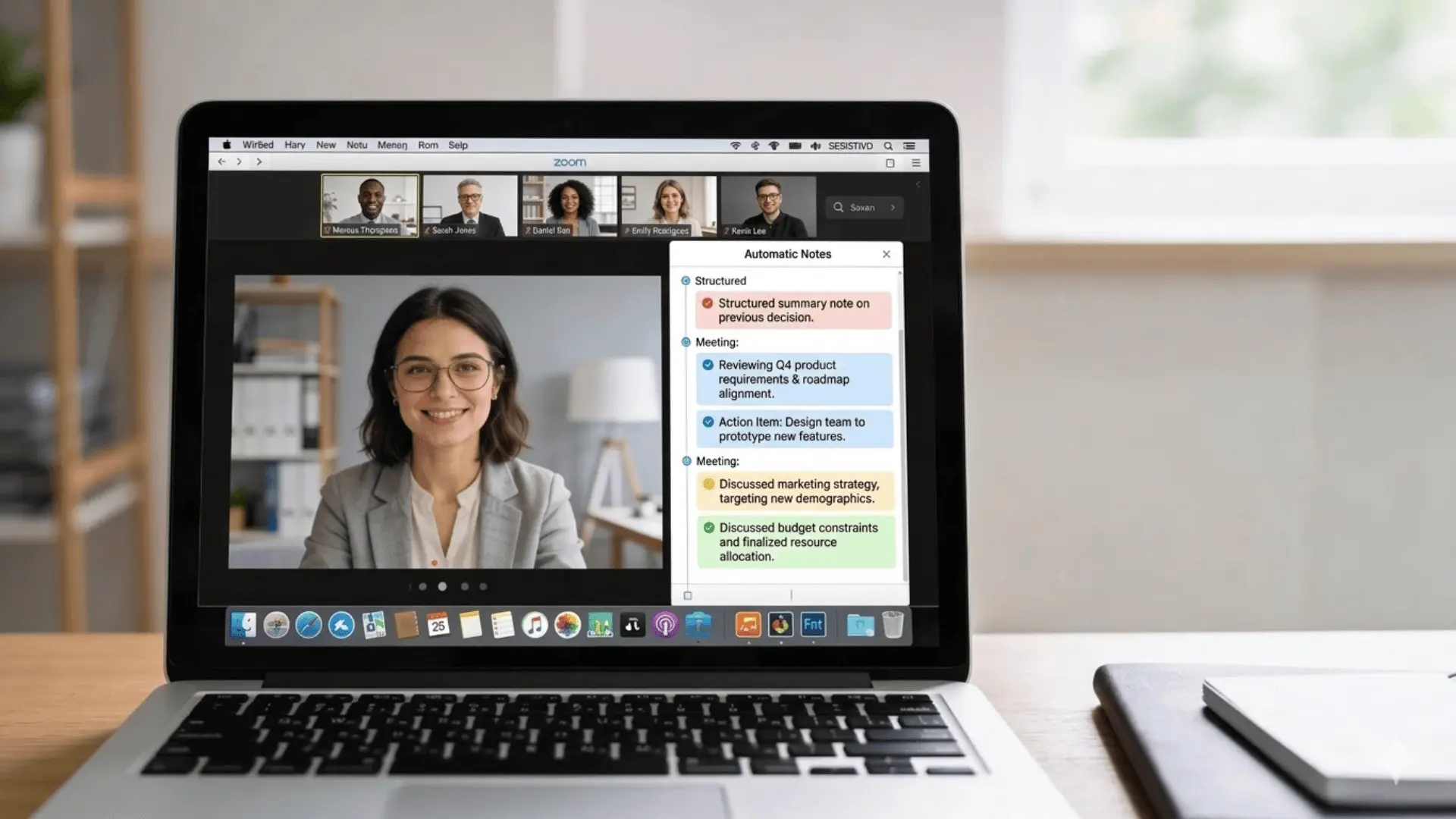
Google’s native note-taking feature has become a common starting point for many users. Because it sits inside Google Meet itself, it removes the need for third-party tools in many situations.
What Gemini Generates During a Meeting
During a meeting, Gemini listens to the conversation and produces a structured summary of the discussion. Instead of presenting a full transcript first, the system focuses on capturing the main points of the meeting.
In most cases, the notes include the major topics discussed, the decisions that were made, and any follow-up tasks that appear in the conversation.
How the Notes Appear After the Meeting
Once the meeting ends, the generated notes are typically saved to a Google Doc and shared with participants. The document is structured so the information is easy to review and edit later.
Most meeting notes include three main sections:
- Meeting overview
- Key takeaways
- Action items
Because the notes live inside Google Docs, participants can immediately edit, comment on, or share the document with the rest of the team.
Some teams later turn these structured notes into internal guides or tutorials using eLearning authoring tools that organize training materials.
When the Built-in Tool is Enough
For many teams, the built-in AI note taker works well for routine meetings. It is particularly useful when meetings happen entirely inside Google Workspace and the team already uses Google Docs to collaborate on notes.
In these situations, the main goal is usually to capture quick summaries and decisions rather than maintain a detailed meeting archive.
When Teams Need Additional Tools
External tools become useful when teams want deeper meeting insights or more advanced workflows.
This usually happens when teams need searchable transcript archives, analytics across multiple meetings, or integrations with tools outside the Google ecosystem.
In those cases, third-party meeting assistants often provide more flexibility than the built-in option.
How AI Note Takers Turn Meetings Into Summaries

When I say that AI “generates summaries,” the process actually happens in several stages. Understanding the pipeline will give you a better picture of why different tools produce different results.
1. Meeting Audio is Converted Into a Transcript
The first step is speech recognition.
The system converts spoken audio into text using speech-to-text models trained on large datasets of voice recordings. These models analyze patterns in the audio signal, predict likely words, and assemble them into sentences.
If the audio is clear and participants speak one at a time, the transcript is usually accurate. When people interrupt each other, speak quickly, or have strong background noise, transcription errors become more common.
2. Key Discussion Points Are Identified from The Transcript
Once the transcript exists, AI models analyze the text to locate meaningful parts of the conversation.
The system searches for language patterns that often signal important moments, such as:
- Decisions
- Proposals
- Questions
- Agreements
For example, phrases like “we should do this” or “let’s move forward with that” often signal important moments. The AI groups these statements together and uses them to build the meeting summary.
3. Action Items Are Detected in Conversations
Extracting tasks from a conversation is more complex than summarizing topics.
The AI scans the transcript for patterns that typically signal commitments or responsibilities, such as:
- Commitments (“I’ll send that tomorrow”)
- Assignments (“John will handle this”)
- Deadlines (“Let’s finish by Friday”)
When these signals appear, the system converts them into action items inside the meeting notes.
Because the system relies on language patterns rather than true understanding, it can occasionally misidentify tasks. This is why a quick human review of the generated action items is still useful.
4. The Final Meeting Summary is Produced
After identifying key moments and tasks, the system assembles the final summary.
Different tools prioritize different parts of this process. Some focus heavily on transcription accuracy, while others emphasize summarization or task extraction. Even small differences in these models can lead to noticeably different meeting notes.
That is why two AI tools listening to the same meeting can produce summaries that look similar in structure but vary in the details they highlight.
Chrome Extensions vs. Meeting Bots: How Google Meet AI Note Takers Connect
AI note takers usually connect to meetings in one of two ways. Understanding this difference helps explain how the tools behave during calls.
Browser-Based Note Takers (Extensions)
Browser extensions run locally on your computer. They monitor meeting audio or captions while you participate in the call.
Advantages include:
- No additional participants in the meeting
- Faster setup
- Simple installation
The downside is that the tool only works while your browser is open and active.
AI assistants that join meetings as participants
Bot-based tools join meetings like an extra attendee. The bot records the audio and processes the conversation afterward.
Advantages include:
- full meeting recording
- centralized transcript storage
- cross-meeting search
The trade-off is that participants can see the bot in the meeting list.
Differences in Recording, Permissions, and Automation
Because bot assistants operate outside your device, they can automatically join meetings from calendar invites.
Extensions depend on your browser session.
For teams that want automatic meeting capture across many calls, bot systems usually provide more consistent coverage.
If recordings from these meetings are later edited for tutorials or public videos, teams also need to consider export settings like the correct YouTube video aspect ratio.
How to Choose the Best AI Note Taker for Google Meet
Choosing the right tool becomes easier when you focus on how your meetings actually work, not just the feature list. The best option depends on whether you run solo meetings, manage a team, or need long-term meeting records.
| Situation | Best Option | Why It Works |
|---|---|---|
| Personal meetings or small calls | Built-in Gemini or simple Chrome extension | Quick summaries without installing extra systems |
| Team collaboration and shared notes | AI tools like Otter, Read AI, or tl;dv | Store transcripts across meetings and allow team access |
| Occasional meetings | Basic AI summaries | You mainly need quick notes and reminders |
| Frequent or daily meetings | Full transcript platforms | Search past meetings and track discussions over time |
| Fully inside Google Workspace | Google Meet Gemini notes | Works directly with Docs and Calendar |
| Using multiple tools or platforms | Third-party AI note takers | Better integrations with Slack, project tools, and CRMs |
The best AI note taker is simply the one that captures your meetings in the way your team actually works.
Wrapping Up
Meetings are where decisions, ideas, and commitments happen. Yet many of those details disappear the moment the call ends.
A Google Meet AI note taker helps prevent that by capturing conversations and turning them into structured notes. Instead of relying on memory or scattered documents, you get a clear record of what actually happened.
The key is choosing a tool that matches how your meetings work. Some teams need quick summaries inside Google Docs. Others benefit more from searchable transcripts and deeper meeting insights.
Once you understand how these systems capture, transcribe, and summarize conversations, it becomes easier to pick the one that fits your workflow and keeps meetings from disappearing into memory.
Frequently Asked Questions
What is the best AI note taker for Google Meet?
The best AI note taker for Google Meet depends on your workflow. Gemini works well for simple summaries inside Google Workspace, while tools like Otter.ai or Tactiq offer transcripts, search, and deeper meeting tracking.
Is there a free AI note taker for meetings?
Yes, several AI meeting note takers offer free versions. Google Meet’s built-in Gemini notes, Chrome extensions like Tactiq, and tools like Otter.ai provide limited free plans with transcription and basic summaries.
How do I turn on AI transcription in Google Meet?
To enable AI notes in Google Meet, start your meeting, open the meeting controls, and select the “Take notes for me” option if your Workspace plan supports Gemini features. The system will generate notes automatically.
How do I turn off Google Meet AI note taker?
You can turn off the AI note taker during a meeting by opening the meeting controls and disabling the “Take notes for me” feature. This stops the AI from recording and summarizing the conversation.