

Many people assume creating a training video is simple. Just record someone explaining a topic and upload the video.
In practice, that approach rarely works well. Employees lose focus, key steps get skipped, and the video ends up being watched once and forgotten.
Effective training videos follow a structured process that makes information clear and repeatable.
This process is known as training video production. It connects learning goals, scripts, visuals, and editing into one system that helps people understand and remember what they are taught.
In this guide, I’ll walk through how the process works, why each stage matters, and what actually makes training videos effective in real workplaces.
What Training Video Production Is and Why Organizations Use It
Training video production is the process of planning, recording, and editing videos designed to teach a specific skill or procedure. The goal is not entertainment. The goal is consistent learning.
A good training video does something simple but powerful. It delivers the same instruction every time someone watches it. That consistency is why organizations use video training instead of repeating the same explanations in meetings or live sessions.
How Training Videos Support Consistent Employee Learning
When training happens only in person, the quality changes each time it is delivered. One instructor might explain a process clearly. Another might skip steps or assume people already understand something.
Training videos remove that variation.
Once the instruction is recorded and structured properly, every employee sees the same explanation. That matters in situations like:
- onboarding new employees
- teaching safety procedures
- demonstrating software workflows
- explaining standard operating processes
Video also allows learners to control the pace. Someone can pause, rewind, or watch a section again. That simple control improves understanding because people process information at different speeds.
There is also a practical benefit. A training manager may only have to record the instruction once, but the video can train hundreds or thousands of employees over time.
How Training Video Production Differs from General Video Creation
Not all videos teach well. A training video must be designed around learning, not presentation.
For example, a marketing video may focus on storytelling and emotion. A training video focuses on clarity. Every step must be visible and understandable.
The structure also differs. Training videos often follow a logical progression:
- Introduce the task or skill
- Show the process step by step
- Highlight common mistakes
- Reinforce the correct method
Another difference is pacing. Training videos must move slowly enough for viewers to follow each step, but quickly enough to keep attention. That balance is part of the production process, especially during scripting and editing.
Without that structure, the video becomes a lecture instead of a training tool.
How Training Video Production Works

Most training video projects follow three main stages. Each stage solves a different problem in the production process. Skipping one stage usually causes problems later.
Pre-Production Planning
Pre-production is where the learning plan is built. This stage focuses on defining what the viewer needs to learn and how the video will show it.
Key tasks usually include:
- defining learning objectives
- identifying the target audience
- writing a script
- creating a storyboard
This stage matters because filming without a clear plan often produces confusing videos. The speaker may repeat ideas, skip steps, or drift into unrelated topics. Planning properly prevents that.
Production Recording
Production is the filming stage. This is where the script turns into recorded video.
During this stage the team captures the footage needed to explain the training topic. This might include a presenter speaking to camera, a screen recording, or a demonstration of a physical task.
Production focuses on capturing clear visuals and audio. If the explanation is difficult to hear or see, the training loses effectiveness immediately.
Post-Production Editing
Post-production turns raw footage into a finished training video. Editing removes pauses, adds visual elements, and organizes the content into a clear learning sequence.
This stage is often misunderstood. Editing is not just about making a video look polished. It improves understanding by:
- removing distractions
- highlighting key steps
- controlling pacing
- adding visual cues
In other words, editing helps viewers follow the training more easily.
The Full Training Video Production Process: Step-by-Step
Training video production follows a simple workflow that turns knowledge into clear instructions. Most projects move through three stages: planning, recording, and editing.
1. Plan the Training Video Before Filming

The planning stage determines whether the final video will be clear or confusing.
Many people want to start filming immediately. In reality, planning saves time because it prevents reshooting and editing problems later.
Define the Training Objective
Every training video should answer one simple question: What should the viewer be able to do after watching this video?
A vague objective like “understand the system” is not helpful. A clear objective might be:
- Submit an expense report
- Operate a machine safely
- Complete a customer onboarding workflow
Clear objectives shape the entire video. They determine what information to include and what to leave out. Without that focus, training videos often become long explanations instead of practical instruction.
AI assistants are also starting to support the early planning stage by generating outlines and summarizing ideas. Tools such as Lunchbreak AI can help convert rough notes into structured training content before recording begins.
Identify the Audience and Learning Context
The same topic may require different explanations depending on who is learning it.
For example, a software tutorial for beginners must explain basic navigation. The same video for experienced users can skip those steps.
Audience context also affects tone and pacing. Frontline employees may need quick procedural guidance, while managers might need broader explanations of policy.
Understanding the audience prevents two common problems:
- Explaining things the viewer already knows
- Skipping steps the viewer actually needs
Some teams also use AI tools during the planning stage to summarize meetings and capture key instructions automatically. A Google Meet AI note taker can turn discussion points into structured notes that help shape the training outline.
Create a Training-Focused Script and Storyboard
A training script is different from a presentation script.
Instead of long paragraphs, it often follows a step-based structure. Each section focuses on one action or concept.
Storyboards help visualize what viewers will see on screen while the explanation happens. For example:
- Audio: Explain how to submit a request
- Visual: Screen recording showing the submission form
Many teams also use eLearning authoring tools to turn training videos into structured learning modules. These platforms allow videos to include quizzes, navigation, and progress tracking inside a full course.
This alignment between audio and visuals is critical. When the explanation and visuals match, viewers understand the process faster.
2. Record the Training Video

Recording is where the training plan becomes real footage. Even though filming looks like the most visible stage, it actually works best when most decisions were made earlier during planning.
Choose the Right Recording Format
Different training topics require different video formats. The format affects how easily the viewer can understand the content.
Common options include:
- Presenter explaining a concept
- Screen recordings showing software workflows
- Demonstrations of equipment or procedures
A software tutorial usually works best as a screen recording. A safety procedure might require live demonstrations. Choosing the right format helps the viewer see the process clearly.
Set up Camera, Audio, and Lighting
Clear audio and visuals matter more than expensive equipment.
Viewers can tolerate simple visuals, but they struggle with poor sound quality. If the explanation is difficult to hear, attention drops quickly.
Basic recording setups usually include:
- A camera or screen capture software
- A microphone for clear voice recording
- Lighting that makes the subject easy to see
These elements improve clarity and reduce distractions.
Capture Clear Instructional Footage
During recording, the focus should stay on explaining the process step by step.
Instructors often assume viewers understand more than they actually do. Slowing down the explanation helps avoid confusion.
It also helps to show each step while explaining it. When viewers see the action and hear the explanation at the same time, comprehension improves.
That connection between visual demonstration and explanation is what makes training videos effective.
3. Edit and Finalize the Training Video
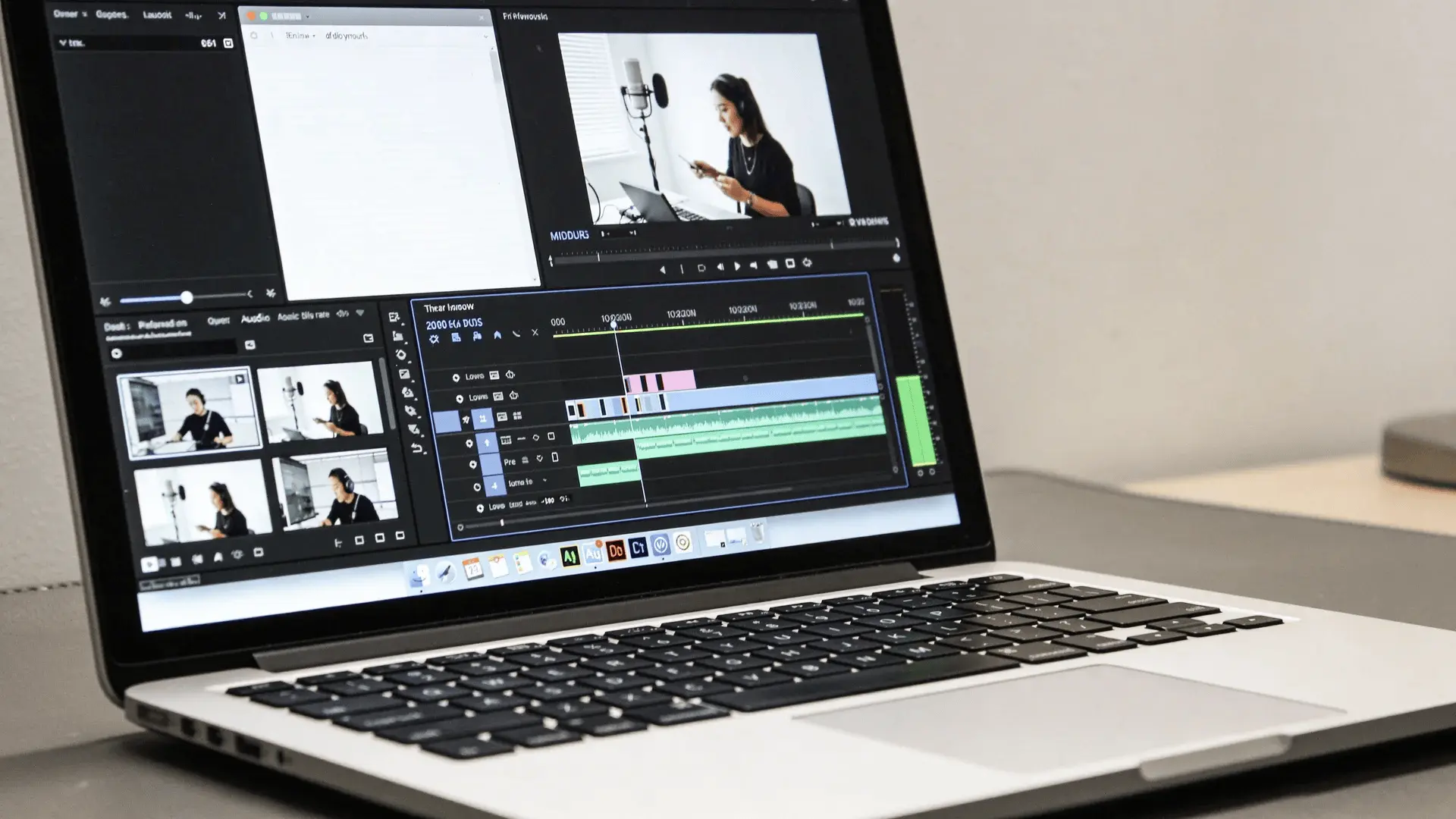
Editing is where the training video becomes structured and easy to follow.
Raw footage often includes pauses, mistakes, and repeated explanations. Editing removes those issues and organizes the content.
Remove Distractions and Improve Pacing
Training videos should move at a steady pace.
Long pauses and filler language slow the video down without adding value. Removing those sections keeps the viewer focused.
At the same time, editing should not rush through important steps. Viewers need enough time to see and understand each action.
Good editing finds the balance between clarity and efficiency.
Add Visuals, Captions, and Graphics
Visual cues help viewers process information faster. Editors often add elements such as:
- Step numbers
- Labels or highlights
- Captions or subtitles
These elements guide attention and make important details easier to notice. Captions also improve accessibility, allowing viewers to follow the training even without sound.
Prepare the Video for Distribution
The final step is preparing the video for delivery.
This usually includes exporting the video in the correct format and uploading it to a training platform or internal system.
If the video is published on external platforms, technical details like the YouTube video aspect ratio become important. Proper formatting ensures the training video displays correctly across different screens and devices.
The goal is simple. Employees should be able to find and watch the video easily when they need it.
Accessibility and organization matter just as much as the video itself.
Common Types of Training Videos and When to Use Them
Different training situations require different video styles. Choosing the right format makes the content easier to understand.
Talking-Head Training Videos
Talking-head videos show a presenter explaining a topic directly to the camera. These videos work well for:
- Onboarding introductions
- Leadership messages
- Policy explanations
They create a sense of personal connection, which can help when explaining culture or values. However, they are less effective for demonstrating technical tasks.
Screen Recording Training Videos
Screen recordings capture software interfaces while someone demonstrates a process.
This format works best for:
- Software tutorials
- Digital workflows
- Step-by-step online tasks
Because viewers see exactly where to click or navigate, screen recordings are often the clearest format for digital training.
Animated Training Videos
Animated videos use motion graphics or illustrations to explain ideas. They are useful when the topic is abstract or difficult to film.
For example:
- Explaining internal processes
- Teaching conceptual frameworks
- Visualizing systems or workflows
Animation can simplify complex ideas, but it often requires more production time.
Basic Training Video Production Equipment
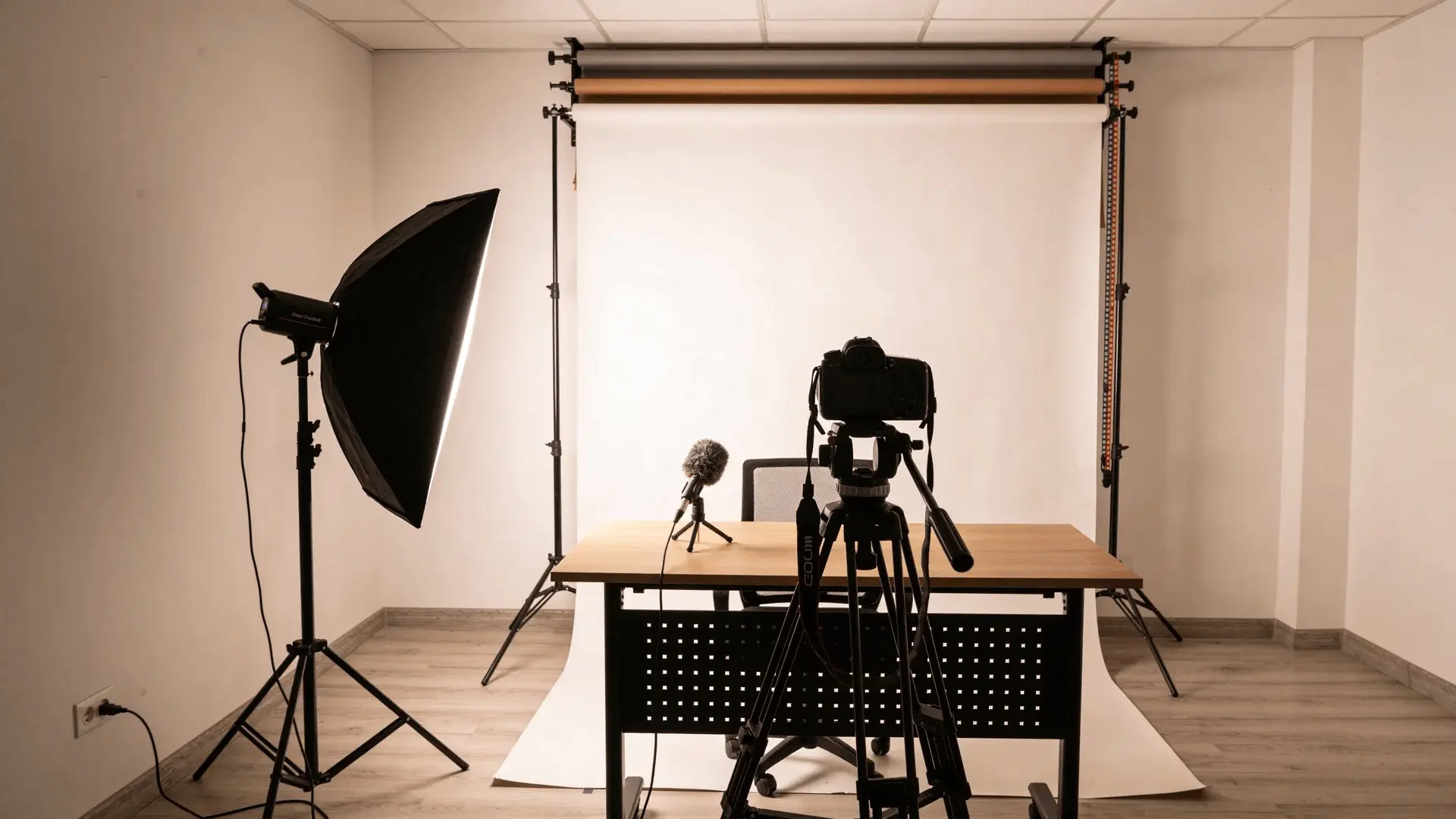
You do not need a large production setup to create effective training videos. Most projects rely on a few essential equipment categories.
Cameras and Recording Devices
A camera captures the visual portion of the training. This might be:
- A professional camera
- A webcam
- Screen recording software
The main goal is clarity. The viewer should be able to see the demonstration clearly.
Microphones for Clear Audio
Audio quality has a major impact on viewer engagement.
Built-in laptop microphones often produce echo or background noise. External microphones provide clearer voice recordings.
Clear audio allows viewers to focus on the instruction rather than struggling to hear the explanation.
Lighting for Visibility
Lighting makes subjects easier to see on camera.
Even simple lighting setups can improve video quality significantly. Soft lighting reduces shadows and helps keep the presenter visible.
Good lighting supports clarity without requiring complex equipment.
Learn Training Video Production Through Video Production Classes
Many professionals learn about training video production through video production classes. These courses teach practical skills such as camera setup, lighting, audio recording, video editing, and script planning.
Video production classes are available through universities, online learning platforms, and specialized training programs. Some focus on filmmaking basics, while others teach corporate training video workflows and instructional design.
Typical Cost of Training Video Production
The cost of producing training videos can vary widely. Several factors influence the total budget.
Cost Range for Simple Internal Training Videos
Simple internal training videos can be produced with relatively small budgets. They usually involve straightforward formats such as screen recordings or talking-head presentations.
| Video Type | Typical Cost (per minute) | Context |
|---|---|---|
| Screen recording | $300–$600 | Software tutorials or system walkthroughs |
| Talking-head video | $500–$900 | Presenter explaining a topic on camera |
| Simple demo video | $600–$1,000 | Demonstrating a physical task or process |
Typical costs range between $300–$1,000 per finished minute when created in-house with basic equipment and editing tools.
Factors that Increase Production Cost
Costs increase as production becomes more complex. The biggest cost drivers are the resources, time, and production quality required.
| Cost Factor | Typical Range | Why It Increases Cost |
|---|---|---|
| Professional film crew | $800–$2,500 per day | Multiple specialists and production equipment |
| Multiple locations | $500–$3,000+ | Travel, logistics, setup time |
| Animation / motion graphics | $1,000–$5,000 per minute | Design and rendering work |
| Advanced editing | $300–$1,500 per minute | Graphics, captions, visual effects |
High-production training videos used by large organizations can reach $1,500–$10,000+ per minute, depending on the level of production quality and complexity.
The right budget depends on how important the training is and how long the video will be used. Longer-term training programs usually justify higher production investment.
Conclusion
Effective employee education rarely happens by accident. It requires structure, clarity, and a repeatable process. Training video production brings those elements together by connecting planning, recording, and editing into one workflow.
When done properly, training video production creates consistent, repeatable learning experiences. Organizations that approach training this way create clearer instruction and more consistent performance across teams.
If you are planning your first project, focus on defining the learning objective and structuring the content around it. Once that foundation is clear, the rest of the training video production process becomes much easier to execute.
Frequently Asked Questions
What are the five stages of video production?
Most video projects follow five stages: development, pre-production, production, post-production, and distribution. Training videos often combine development and planning into a single pre-production stage.
How much does it cost to produce a training video?
Training video costs vary widely. Simple internal videos may cost a few hundred dollars per minute, while complex professional productions can exceed several thousand dollars per minute.
Can AI tools help create training videos?
AI tools can assist with scripting, voiceovers, captions, and editing. They can speed up production, but clear planning and structured instruction are still necessary for effective training videos.